Tax Agent User Manual - Register Juridical Person Tax Agent
Status
Issuing Authority
Navigating through EmaraTax
The Following Tabs and Buttons are available to help you navigate through this process
| Button | Description |
| In the Portal | |
The Federal Tax Authority offers a range of comprehensive and distinguished electronic services in order to provide the opportunity for taxpayers to benefit from these services in the best and simplest ways. To get more information on these services Click Here
Introduction
This manual is prepared to help the applicant to navigate through the Federal Tax Authority EmaraTax portal to submit their Juridical Person Tax Agent Registration application. The applicant should be a legal entity with a Trade License to operate as a Juridical Person Tax Agent.
Login to EmaraTax

|
|
You can login into the EmaraTax account using your login credentials or using UAE Pass. If you do not have an EmaraTax account, you can sign-up for an account by clicking the ‘Sign Up’ button. If you have forgotten your password, you can use the 'Forgot password?' feature to reset your |

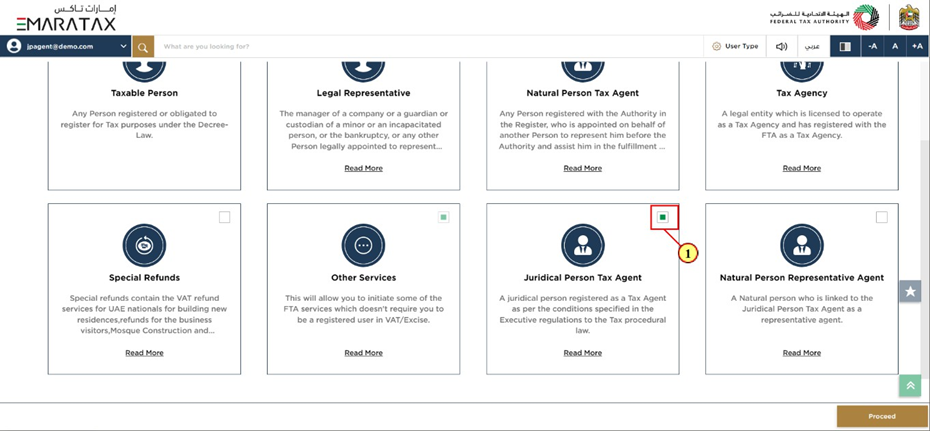
Select User Profile
|
Step |
Action |
|
(1) |
Select the checkbox for 'Juridical Person Tax Agent' to choose the User Profile. |

|
Step |
Action |
|
(1) |
Click ‘Proceed’ to continue to the home page. |
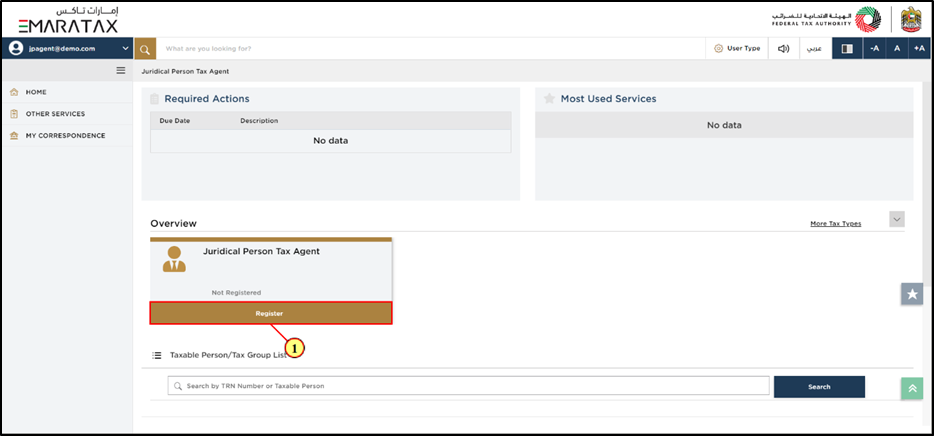
Register Juridical Person Tax Agent
|
Step |
Action |
|
(1) |
Click ‘Register’ on the Juridical Person Tax Agent tile to initiate the Juridical Person Tax Agent Registration application. |
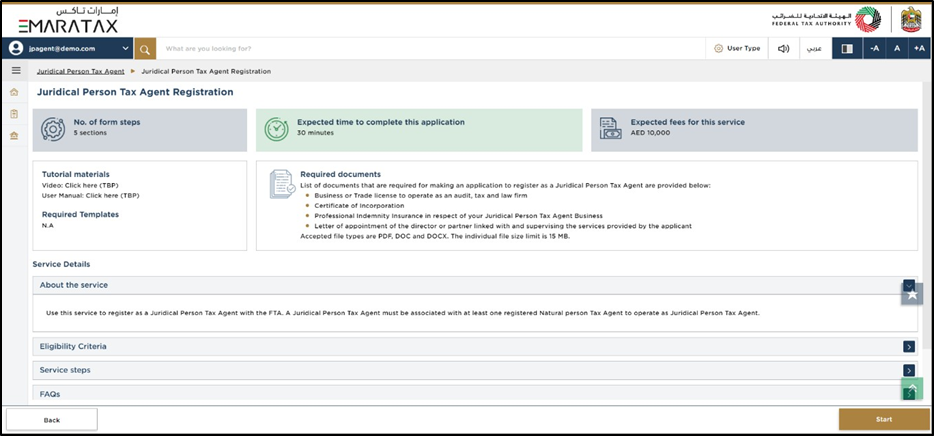
Instructions and Guidelines
|
|
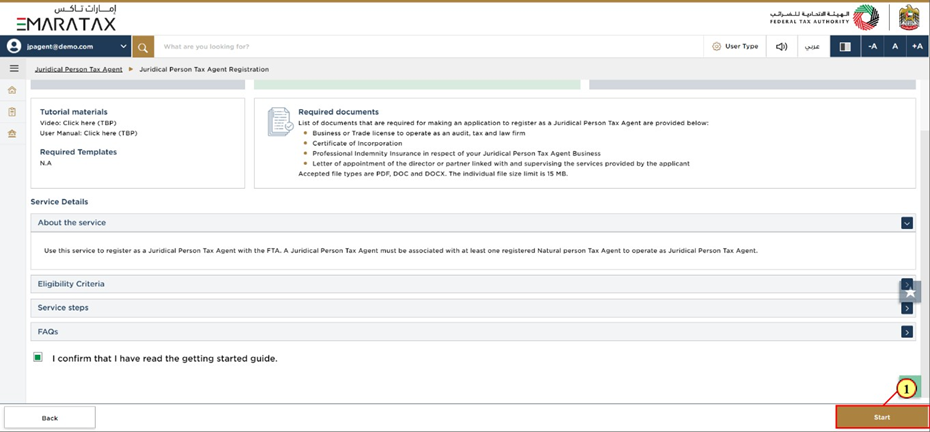
The ‘instructions and guidelines’ page is designed to help you understand certain important requirements relating to Juridical Person Tax Agent Registration in the UAE. It also provides guidance on what information you should have in hand when you are completing the registration application. |
|
Step |
Action |
|
(1) |
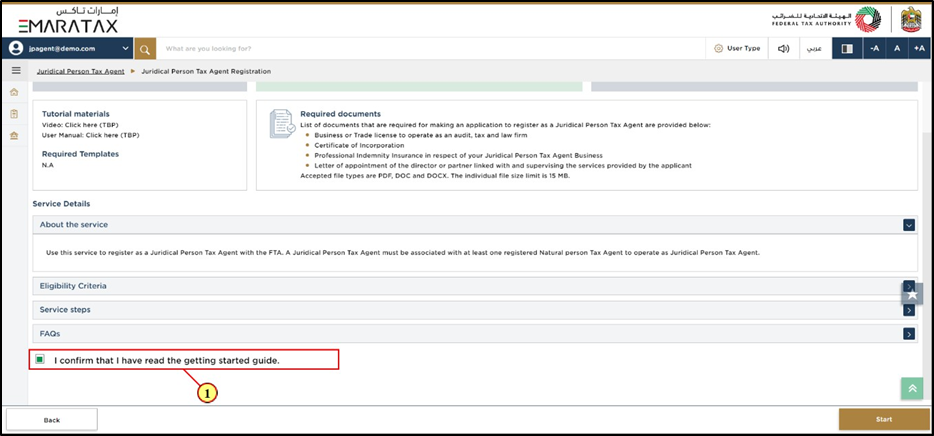
Read the instructions and guidelines for Juridical Person Tax Agent Registration and mark the checkbox to confirm. |
|
Step |
Action |
|
(1) |
Click ‘Start’ to initiate the Juridical Person Tax Agent Registration application. |
Basis of Registration Section
|
|
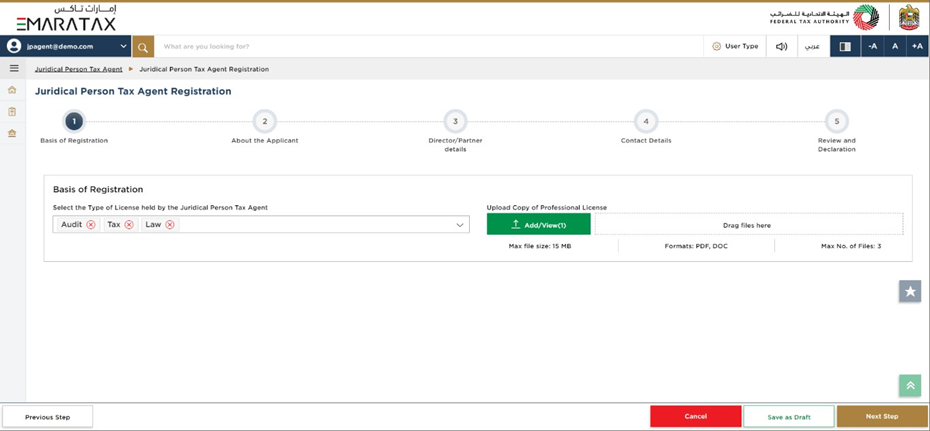
- The registration application has been divided into five short sections, each section being represented in the progress bar. The current section will get highlighted in blue color on the progress bar. As you move to the next steps, the completed sections will get highlighted in green color. |

|
Step |
Action |
|
(1) |
- Select the Type of License held by you that allows you to operate as a Juridical Person Tax Agent. |

|
Step |
Action |
|
(1) |
- Select the Type of License held by you that allows you to operate as a Juridical Person Tax Agent. |
|
Step |
Action |
|
(1) |
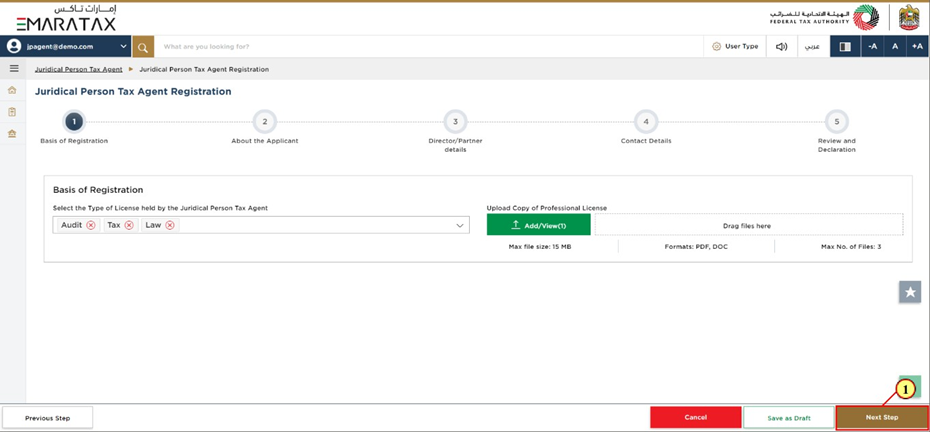
After completing all mandatory fields, click the ‘Next Step’ button to save and proceed to the next section. |
About the Applicant Section

|
Step |
Action |
|
(1) |
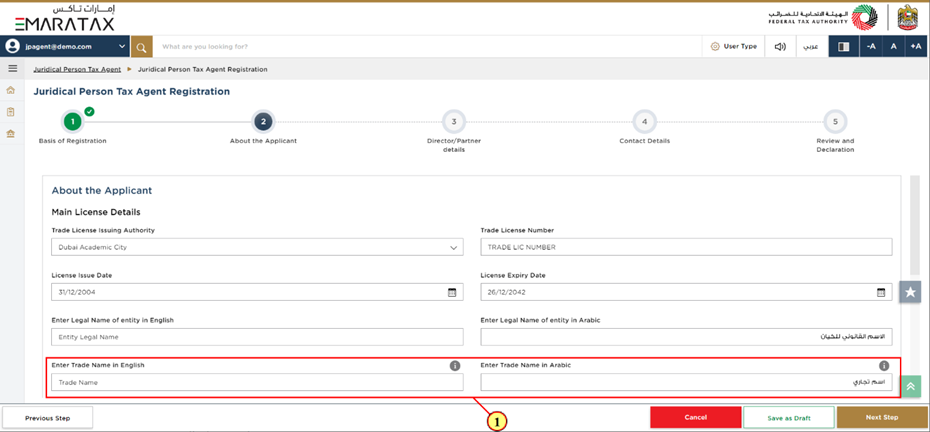
Enter the Applicant information. |
|
Step |
Action |
|
(1) |
Enter the Applicant information. |
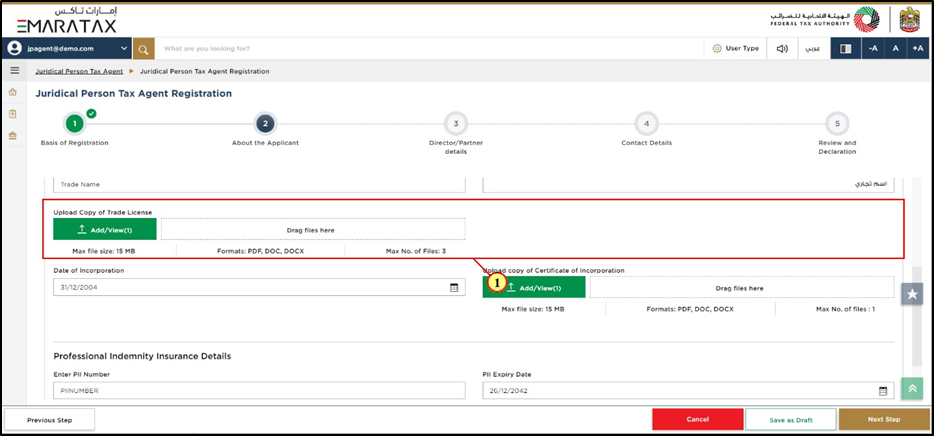
|
Step |
Action |
|
(1) |
Upload Copy of Trade License. |

|
Step |
Action |
|
(1) |
- Enter Date of Incorporation. |
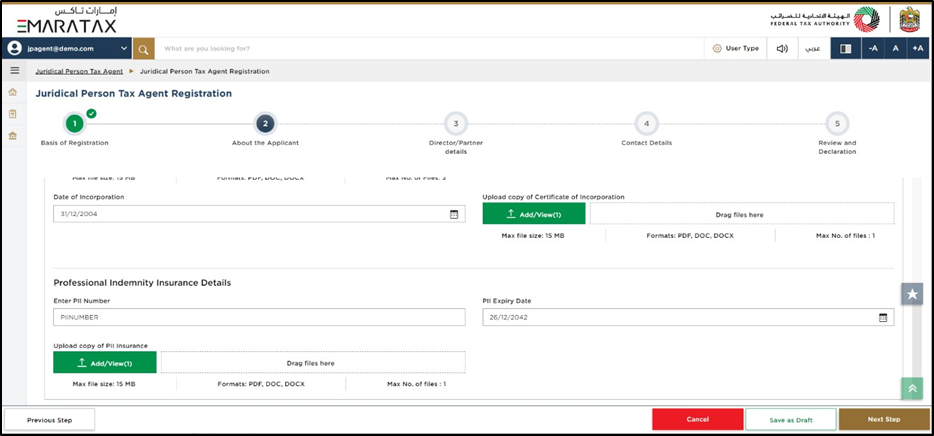
|
|
- Click on the ‘Save as Draft’ button to save your application and return to continue working on your application later. |

|
Step |
Action |
|
(1) |
After completing all mandatory fields, click the ‘Next Step’ button to save and proceed to the next section. |
Director/Partner details Section
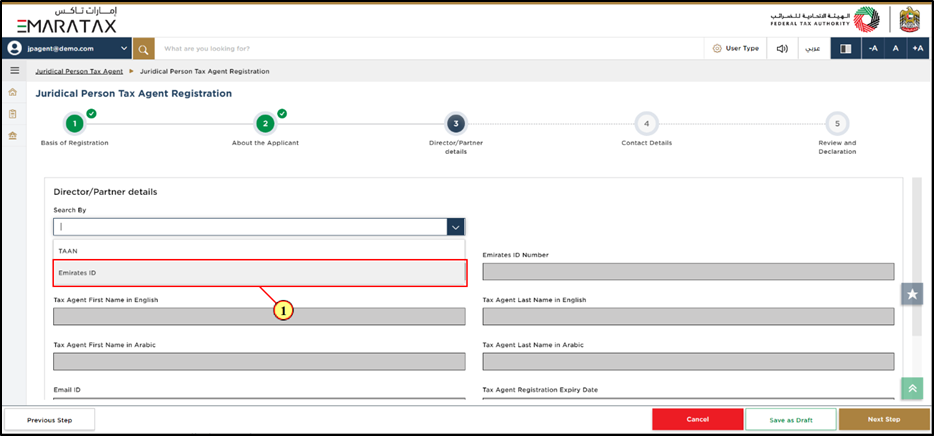
|
Step |
Action |
|
(1) |
Search by the Emirates ID and enter the details. |

|
|
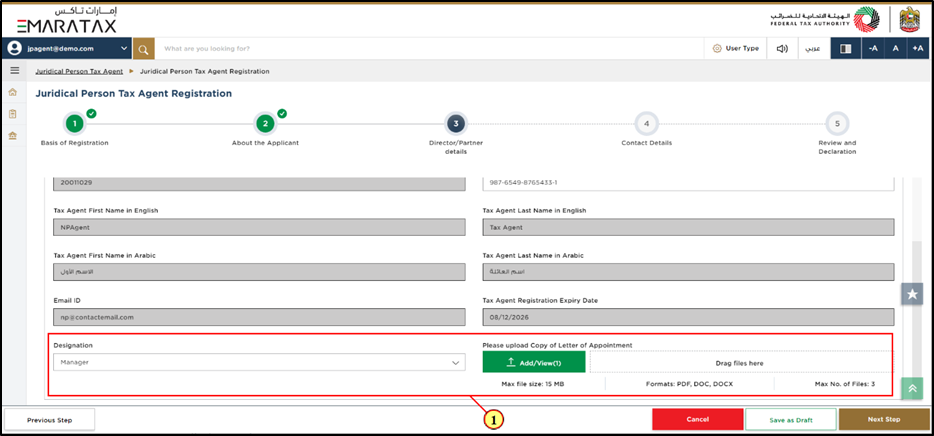
Some of the fields are auto-populated based on the Emirates ID you entered. |
|
Step |
Action |
|
(1) |
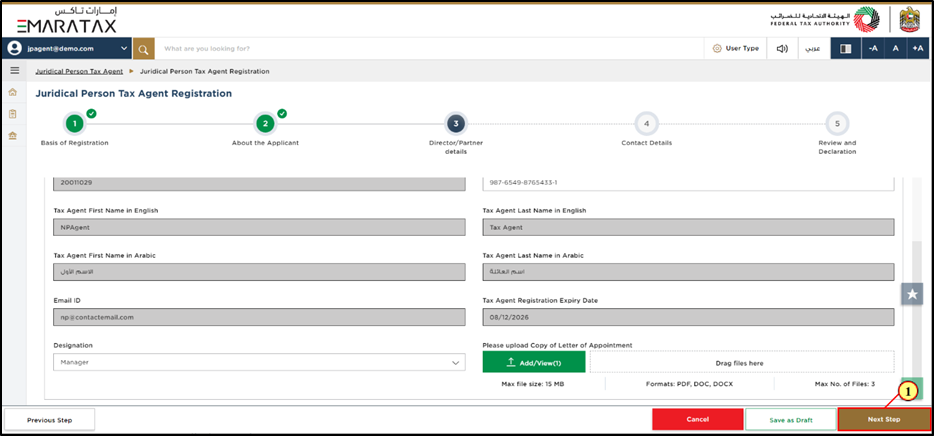
Enter the Designation and upload Copy of Letter of Appointment. |
|
Step |
Action |
|
(1) |
After completing all mandatory fields, click the ‘Next Step’ button to save and proceed to the next section. |
Contact Details Section
|
Step |
Action |
|
(1) |
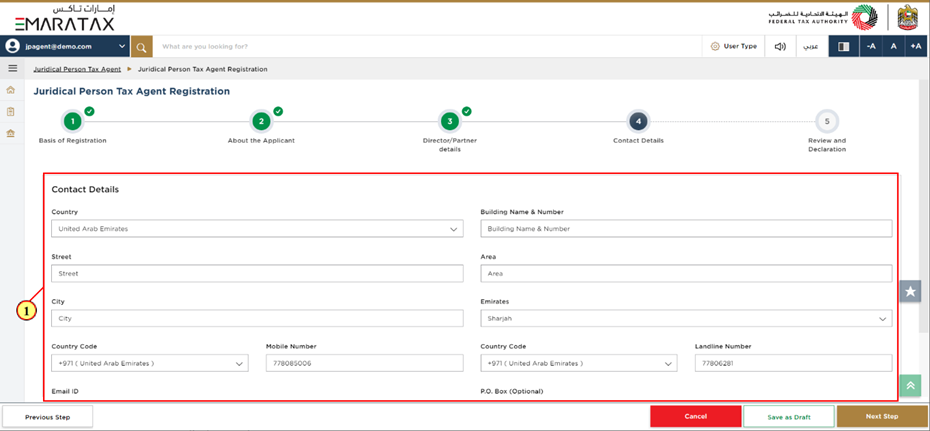
Enter the Contact Details of the Juridical Person Tax Agent. |
|
|
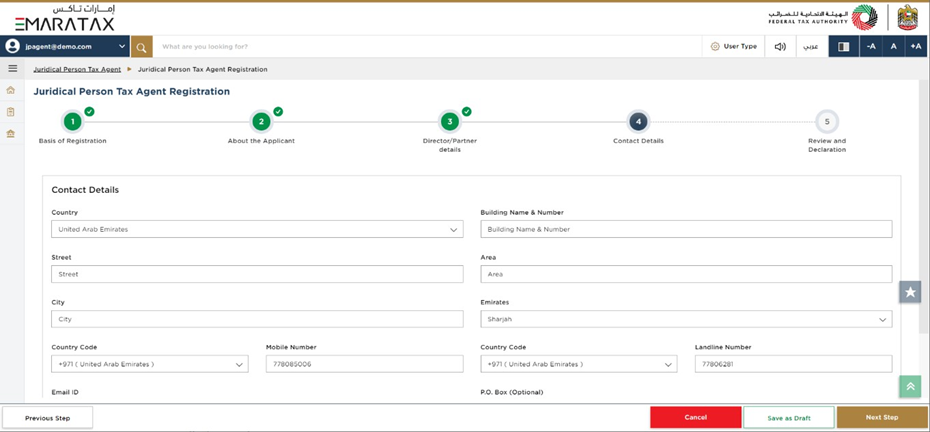
Do not use another company’s address. If you have multiple addresses, provide details of the place where most of the day-to-day activities of the business are carried out. |
|
Step |
Action |
|
(1) |
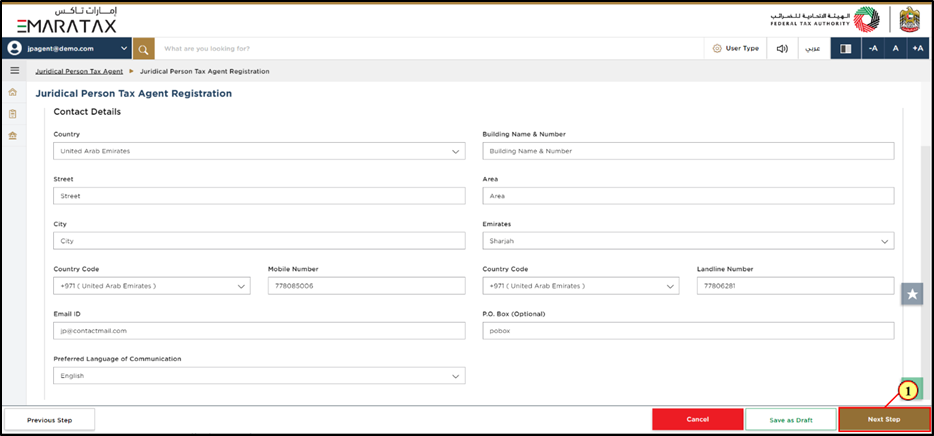
After completing all mandatory fields, click the ‘Next Step’ button to save and proceed to the next section. |
Review and Declaration Section
|
|
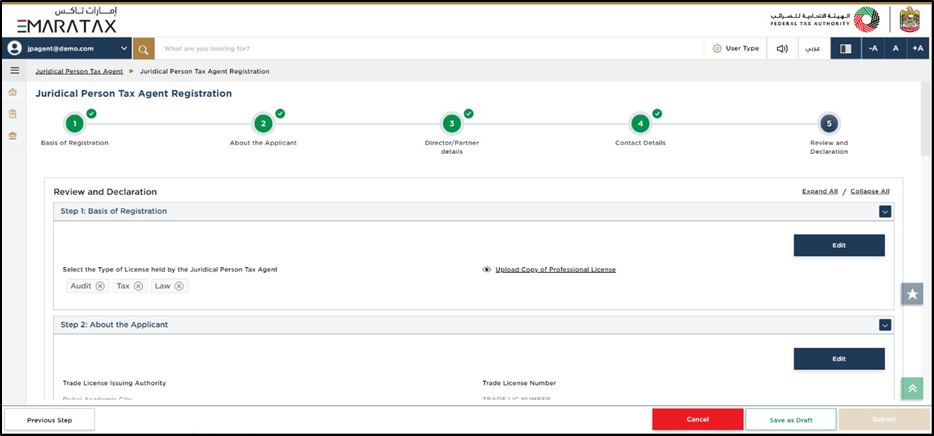
This section highlights all the details entered by you across the application. You are required to review and submit the application. |
|
Step |
Action |
|
(1) |
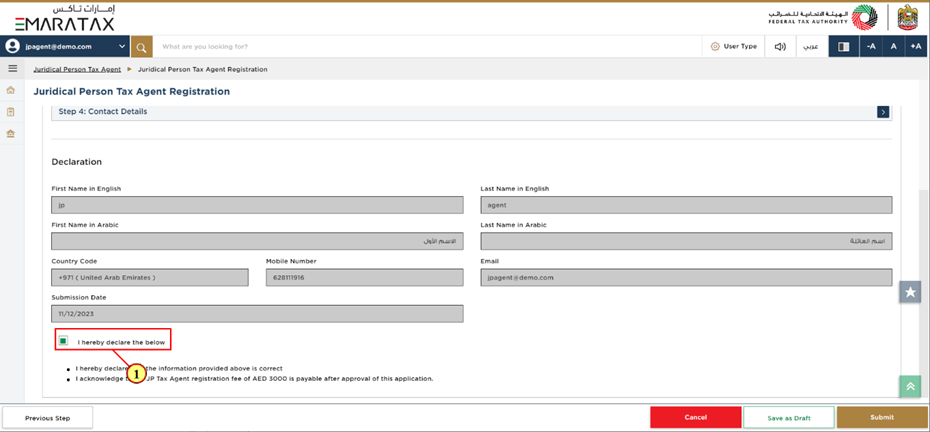
After carefully reviewing all of the information entered on the application, mark the checkbox to declare the correctness of the information provided in the application. |
|
Step |
Action |
|
(1) |
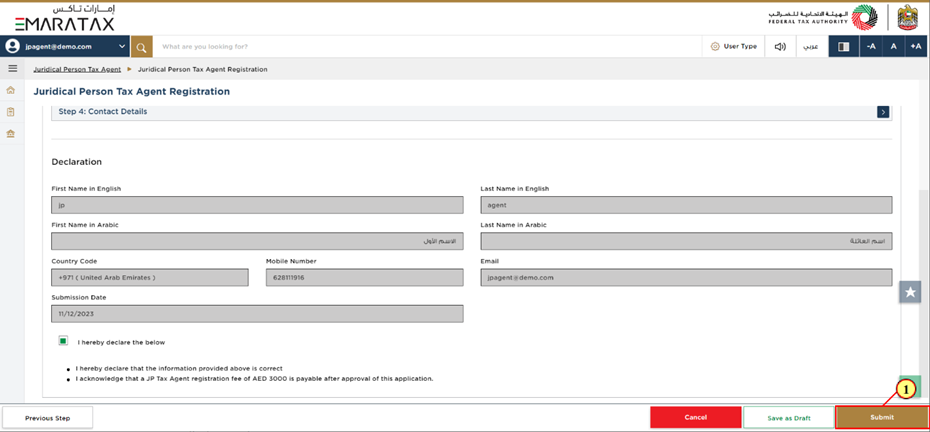
Click ‘Submit’ to submit the Juridical Person Tax Agent Registration application. |
|
Step |
Action |
|
(1) |
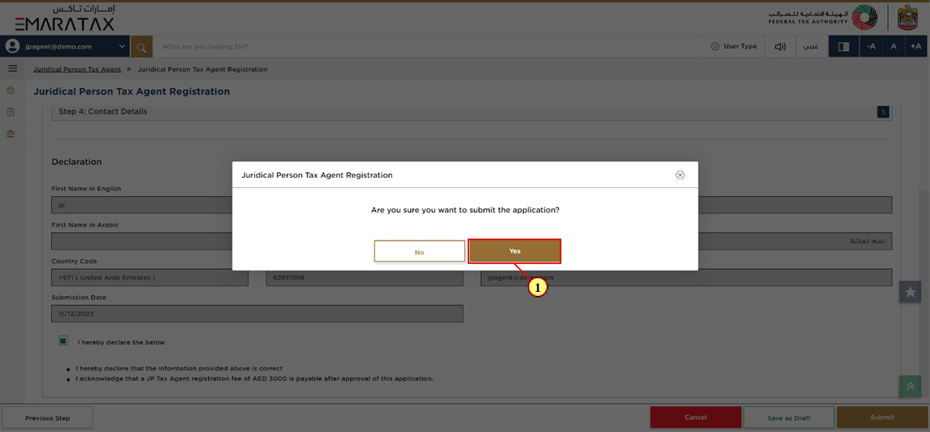
Click 'Yes'. |
Post Application Submission

|
|
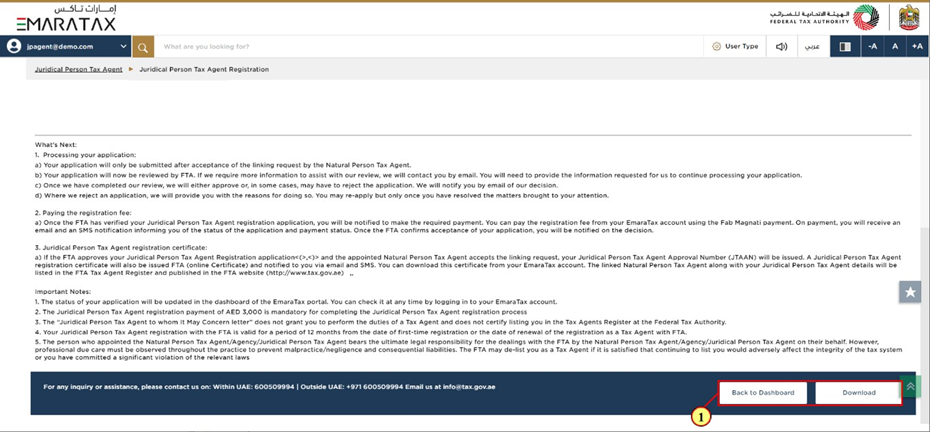
After your application is submitted successfully, a Reference Number is generated for your submitted application. Note this reference number for future communication with the FTA. The application will be sent to Natural Person Tax Agent for acceptance. |
|
Step |
Action |
|
(1... |