Print Certificate - Warehouse keeper User Manual
Status
Issuing Authority
Document Control Information
Document Version Control
| Version No. | Date | Prepared/Reviewed by | Comments |
| 1.0 | 01-Oct-22 | Federal Tax Authority | User Manual for EmaraTax Portal |
Annexure
The below are the list of User manuals that you can refer to
| S. No | User Manual Name | Description |
| 1 | Register as Online User | This manual is prepared to help you navigate through the Federal Tax Authority (FTA) website and create an EmaraTax account with the FTA. |
Navigating through EmaraTax
The Following Tabs and Buttons are available to help you navigate through this process
| Button | Description |
| In the Portal | |
The Federal Tax Authority offers a range of comprehensive and distinguished electronic services in order to provide the opportunity for taxpayers to benefit from these services in the best and simplest ways. To get more information on these services Click Here
Introduction
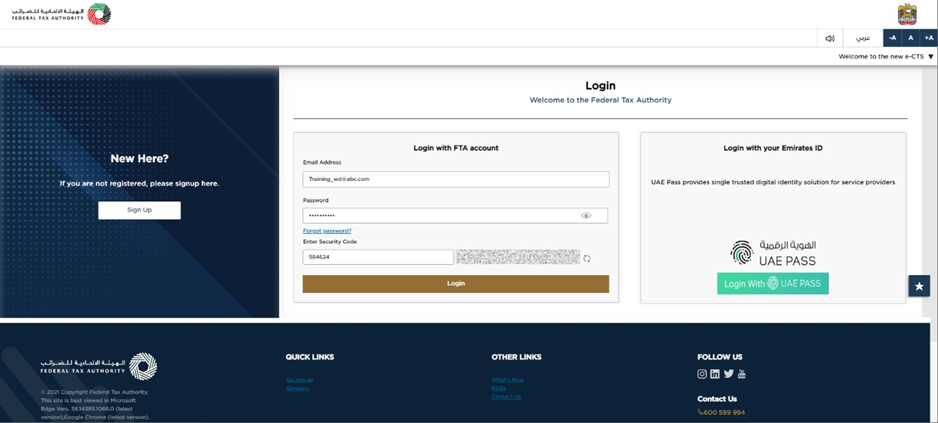
Login to EmaraTax
|
|
- You can login into the EmaraTax account using your login credentials or using UAE Pass. If you do not have an EmaraTax account, you can sign-up for an account by clicking the ‘sign up’ button. If you have forgotten your password, you can use the “forgot password” feature to reset your password.
- If you login via your registered email and password, on successful login, the EmaraTax online user dashboard will be displayed. If you had opted for 2 factor authentication, you will be required to enter the OTP received in your registered email and mobile number to successfully login.
- If you wish to login via UAE Pass, you will be redirected to UAE Pass. On successful UAE Pass login, you will be redirected back to the EmaraTax online user dashboard. |

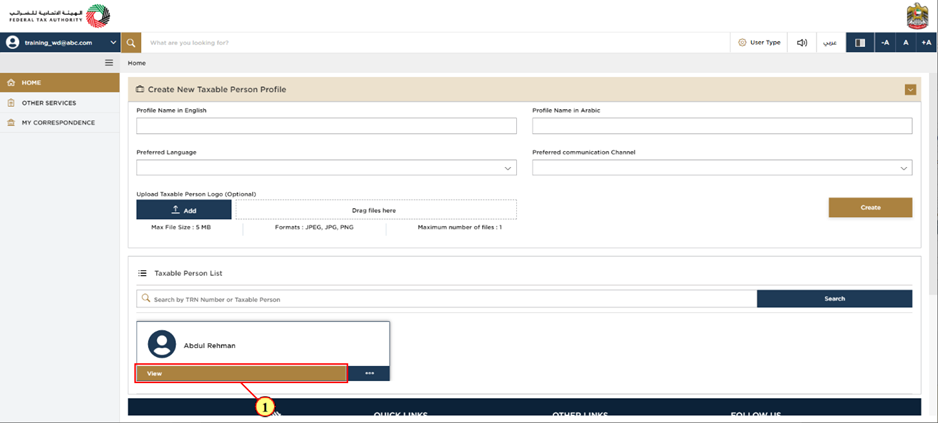
Taxable person Tile
|
Step |
Action |
|
(1) |
Click ‘View’ on the Taxable Person tile to view the Taxable Person dashboard |
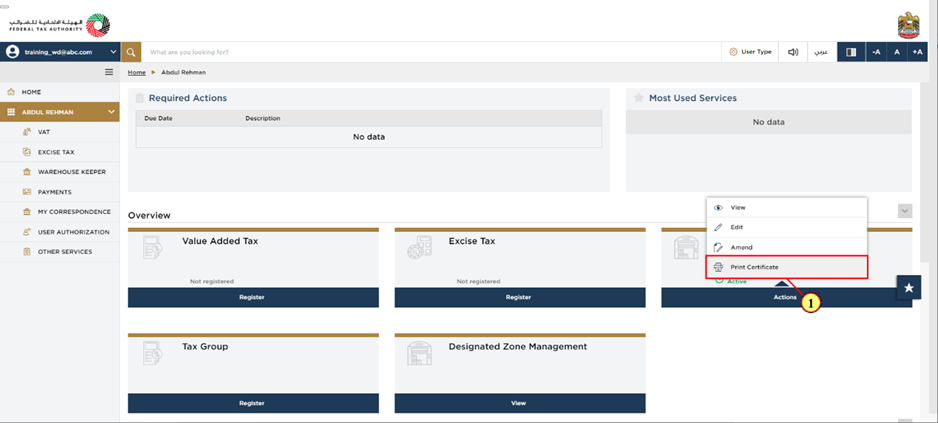
Print Certificate for Warehouse Keeper
|
Step |
Action |
|
(1) |
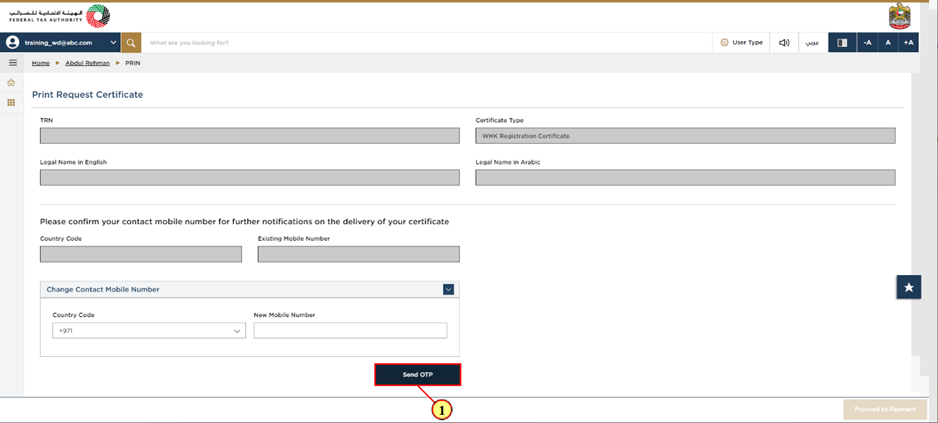
- To print a certificate for the warehouse keeper, you are requested to use this option. |
Print Request Certificate
|
Step |
Action |
|
(1) |
- You may be contacted at this number for delivery of the printed certificate. |
Print Request Certificate – Generate OTP

|
|
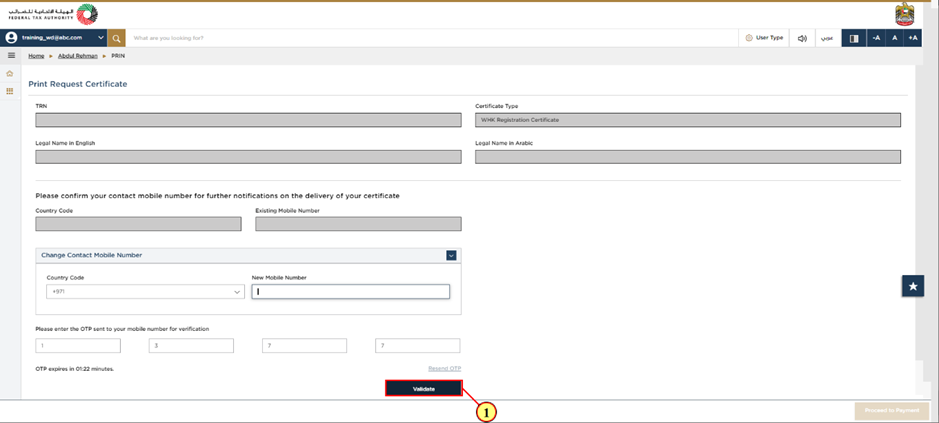
- The mobile number in your Warehouse Keeper registration contact details will not be updated in case you update the mobile number in this application. |
|
Step |
Action |
|
(1) |
- Once OTP generates, fill the required fields, and click 'validate'. |

|
Step |
Action |
|
(1) |
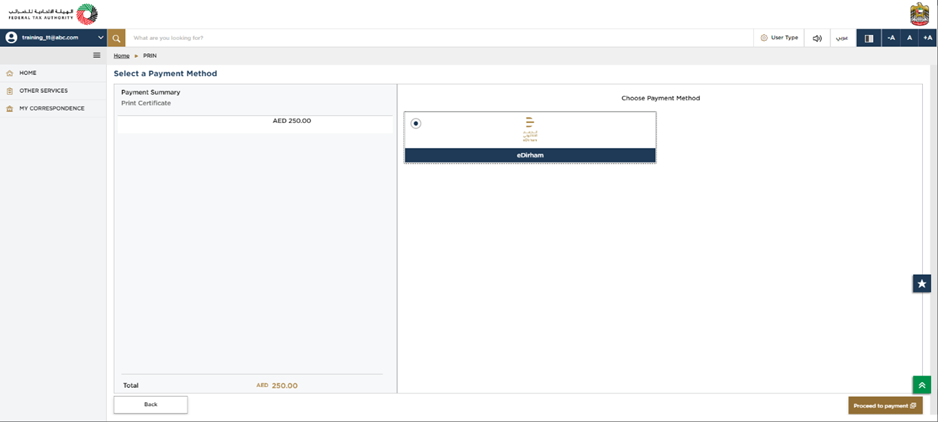
Click on proceed to payment. |
|
|
- The print certificate fees applicable shall be displayed in the ‘Payment summary’. |
Select a Payment Method
|
Step |
Action |
|
(1) |
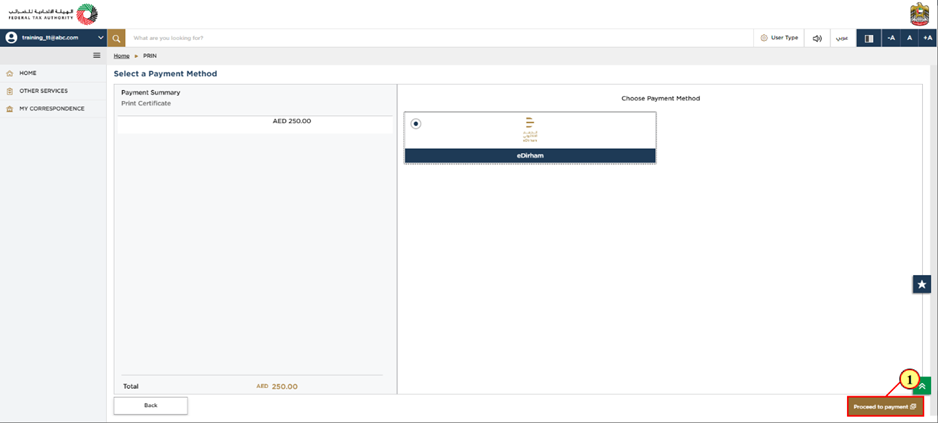
Select the Payment method available and click ‘proceed to payment.’ |
|
Step |
Action |
|
(1) |
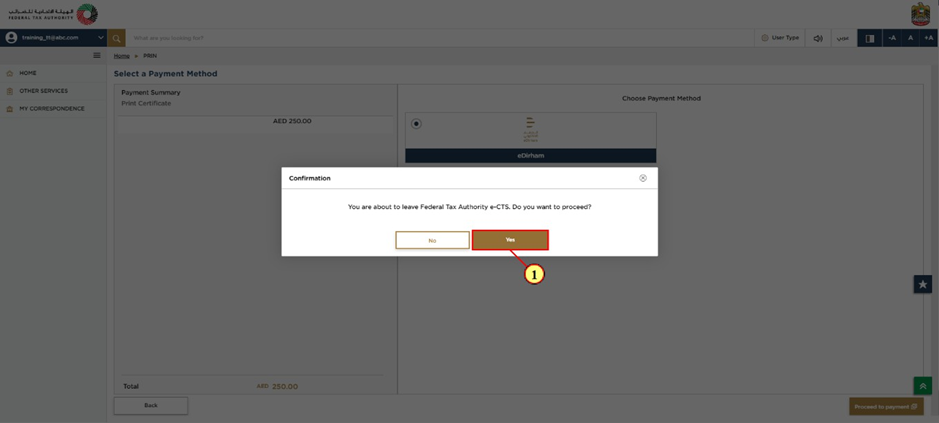
Click 'Yes' to continue. |
Payment
|
Step |
Action |
|
(1) |
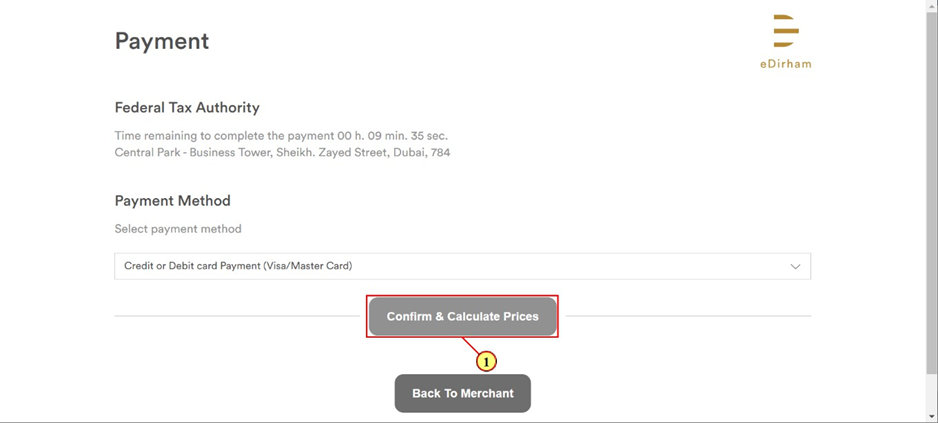
Select the payment method and click ‘Confirm and Calculate Prices’ to determine the total payment amount. |
|
|
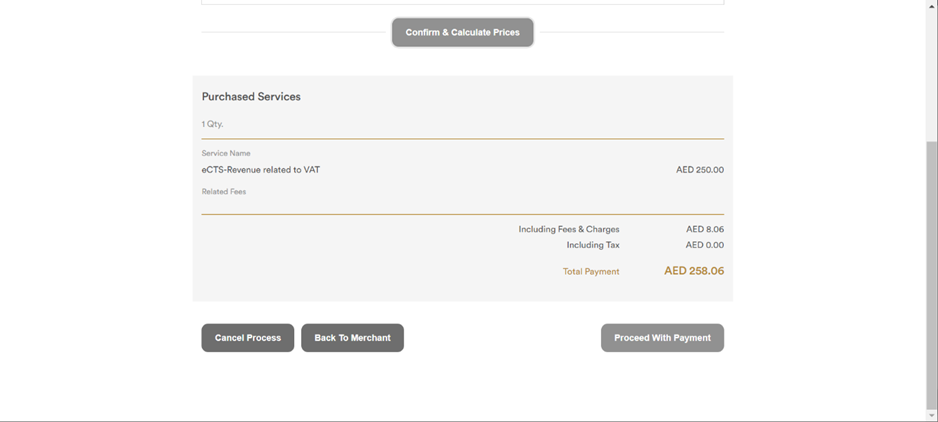
- Before clicking ‘proceed with payment’, verify the total payment amount including the print certificate fees and the additional payment charges. |
Purchased Services

|
Step |
Action |
|
(1) |
Verify the applicable charges to print the registration certificate and click ‘Proceed with Payment’. |
Card Information

|
Step |
Action |
|
(1) |
- To change the payment method, click ‘Change Payment Method’. You will be redirected back to the ‘Payment’ Page. |
|
Step |
Action |
|
(1) |
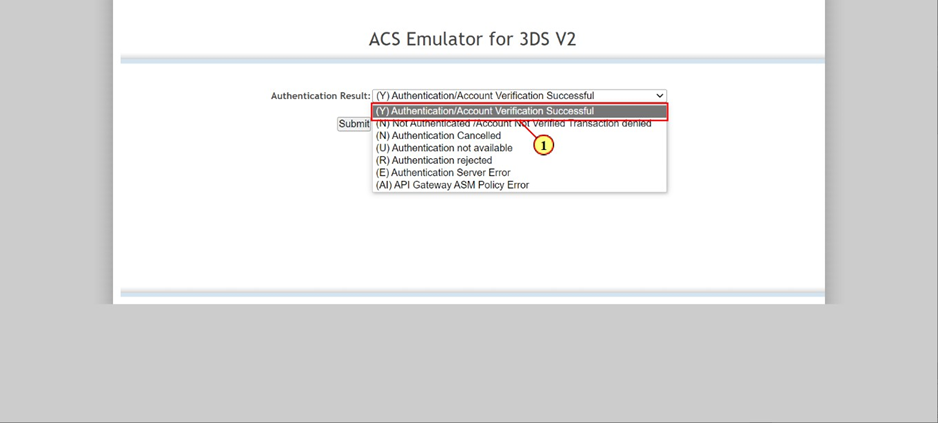
Select 'Authentication or Account Verification Successful' from the dropdown and click 'Submit'. |
|
|
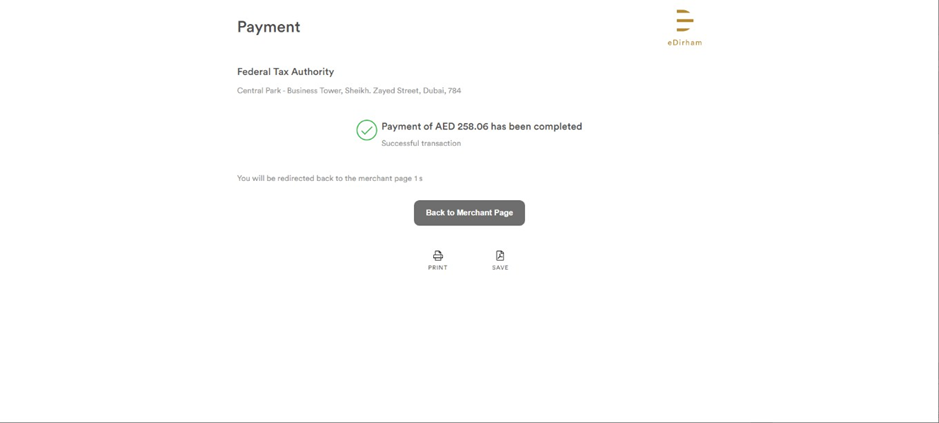
- Payment has been completed. |
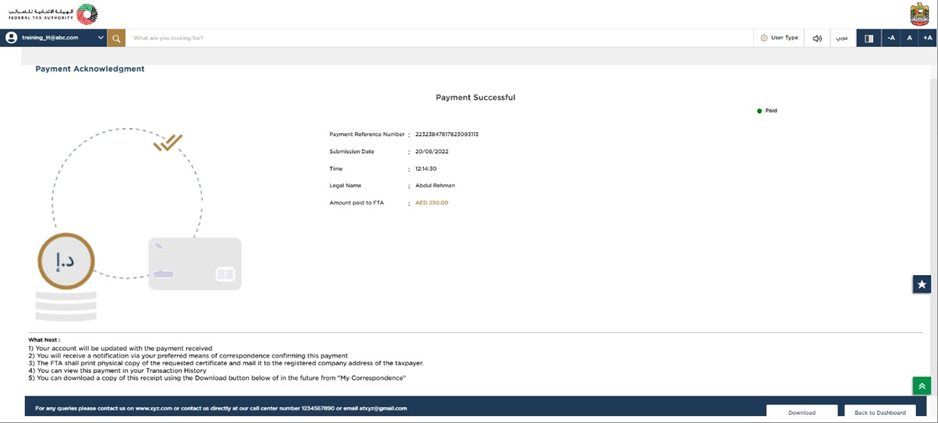
Payment Acknowledgment - on successful
payment
|
|
- After your payment is completed successfully, a Payment Reference Number... |