Foreign Mission and Diplomats Dashboard - User Manual
Status
Issuing Authority
Document Control Information
Document Version Control
|
Version No. |
Date |
Prepared/Reviewed by |
Comments |
|
1.0 |
01-Oct-2022 |
Federal Tax Authority |
User Manual for EmaraTax Portal |
Annexure
The below are the list of User manuals that you can refer to
|
S.No |
User Manual Name |
Description |
|
1 |
Register as Online User |
This manual is prepared to help you navigate through the Federal Tax Authority (FTA) website and create an EmaraTax account with the FTA. |
Navigating through EmaraTax
The Following Tabs and Buttons are available to help you navigate through this process
|
Button |
Description |
| In the Portal | |
The Federal Tax Authority offers a range of comprehensive and distinguished electronic services in order to provide the opportunity for taxpayers to benefit from these services in the best and simplest ways. To get more information on these services Click Here
Introduction
This manual is prepared to help the Business Visitor and UAE Nationals Building New Residences to navigate through the EmaraTax portal and explains the Business Visitor and UAE Nationals Building New Residences Dashboard.
EmaraTax Login Page
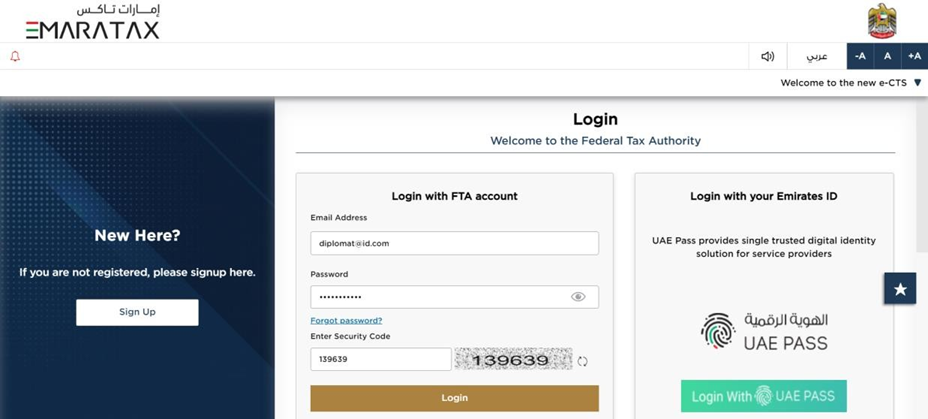
 | - You can login into the EmaraTax account using your login credentials or using UAE Pass. If you do not have an EmaraTax account, you can sign-up for an account by clicking the ‘sign up’ button. If you have forgotten your password, you can use the “forgot password” feature to reset your password. - If you login via your registered email and password, on successful login, the EmaraTax online user dashboard will be displayed. If you had opted for 2 factor authentication, you will be required to enter the OTP received in your registered email and mobile number to successfully login. - If you wish to login via UAE Pass, you will be redirected to UAE Pass. On successful UAE Pass login, you will be redirected back to the EmaraTax online user dashboard. |
Logged in User Dashboard
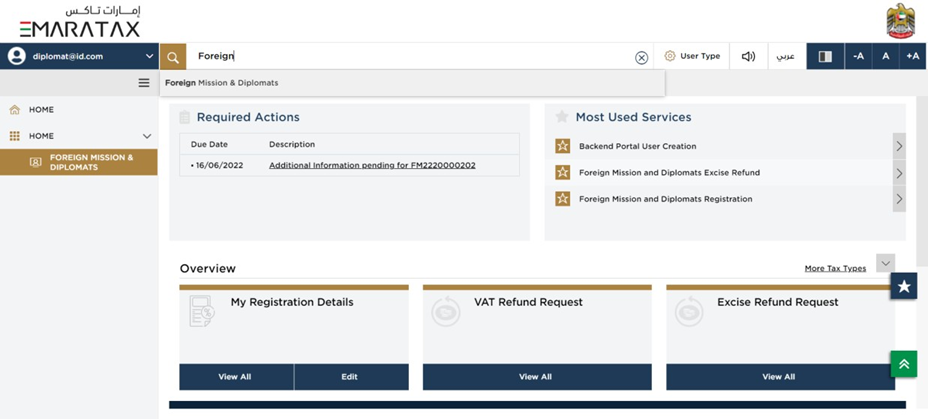
 | Based on the user type, the search bar lists the application forms applicable to the logged in user. The logged in user can select any option and then click on "Search". The user is redirected to the respective page. |
Required Actions
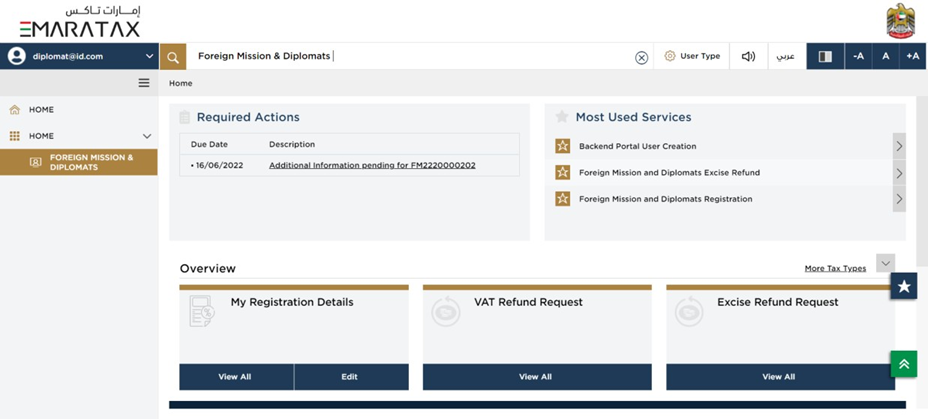
 | The ‘Required Action Section’ will display the three immediate actions that are due from the logged in user. If there are no actions pending from the logged in online user, this section will be empty. |
Most Used Services
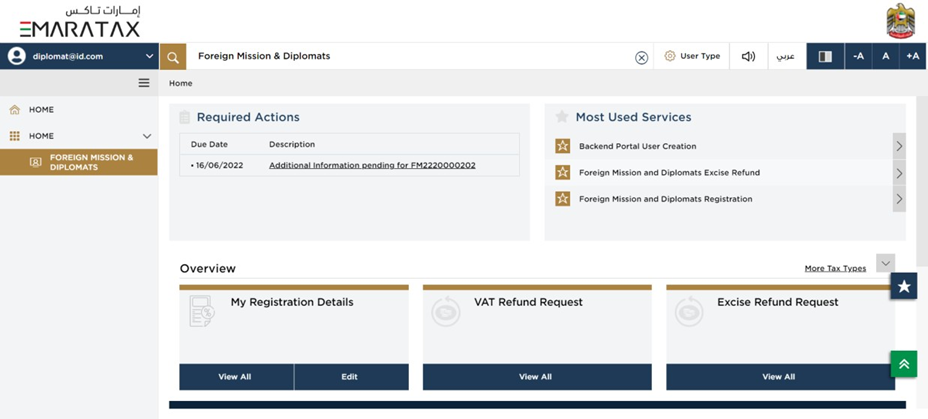
 | The ‘Most Used Services’ will display the frequently availed three services by the logged in user. |
Overview Section
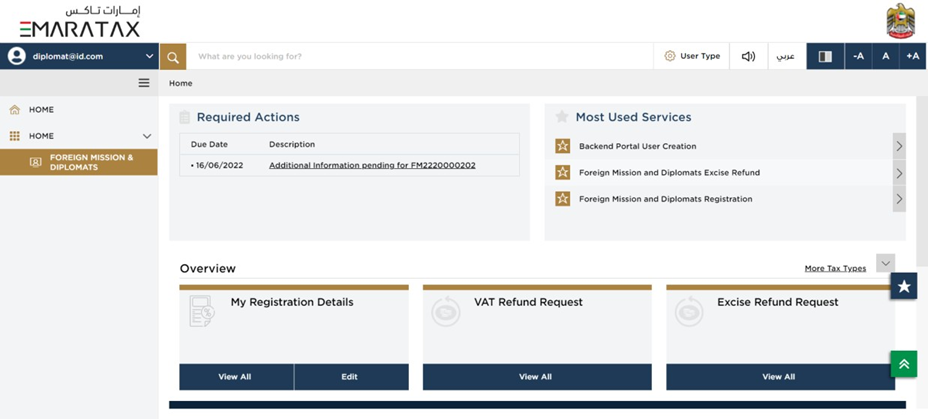
 | The ‘Overview’ section displays the “My Registration Details”, "VAT Refund Request" and “Excise Refund Request” tile. |
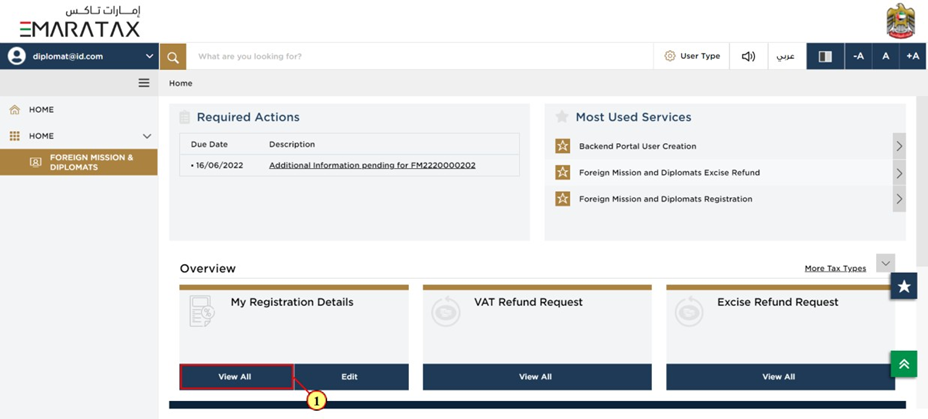
|
Step |
Action |
|
(1) |
Click here to view your registration details |

|
Step |
Action |
|
(1) |
Click here to edit your registration details |
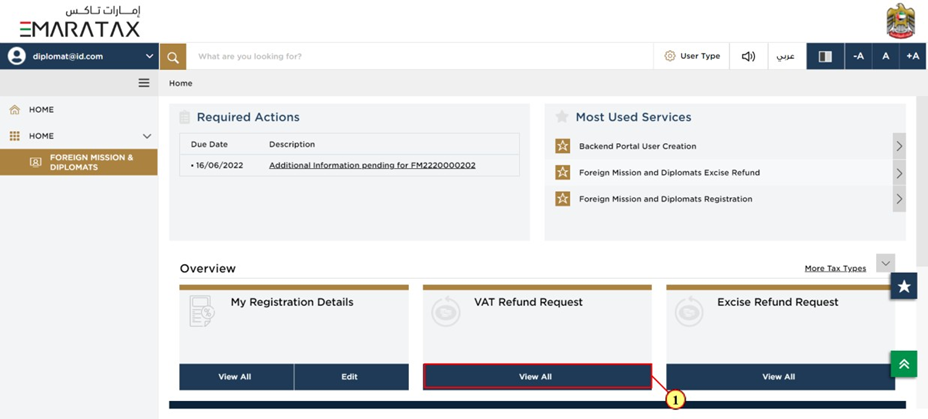
|
Step |
Action |
|
(1) |
Click here to create a new VAT Refund Request and also to view all your previous VAT Refund requests |
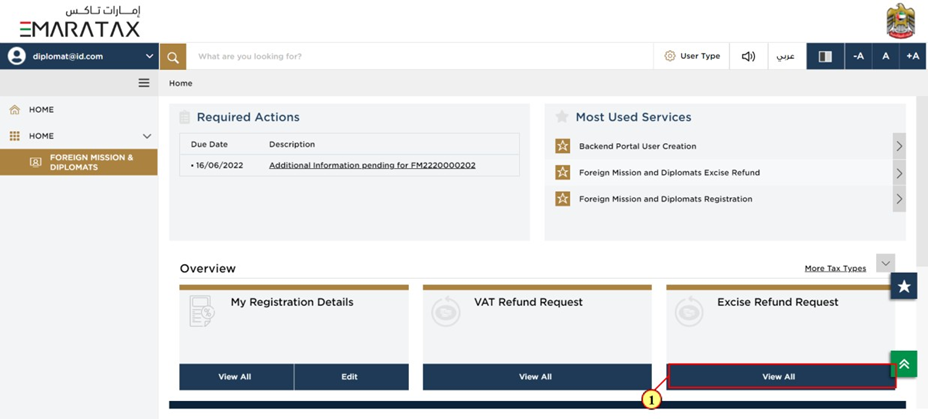
|
Step |
Action |
|
(1) |
Click here to create a new Excise Refund Request and also to view all your previous Excise Refund requests |
Manage Account

|
Step |
Action |
|
(1) |
Click on ‘Manage account’ to manage the logged in user account. |
Log Out of EmaraTax Portal

|
Step |
Action |
|
(1) |
Click on ‘Log out’ to log out from the logged in user’s EmaraTax account. |
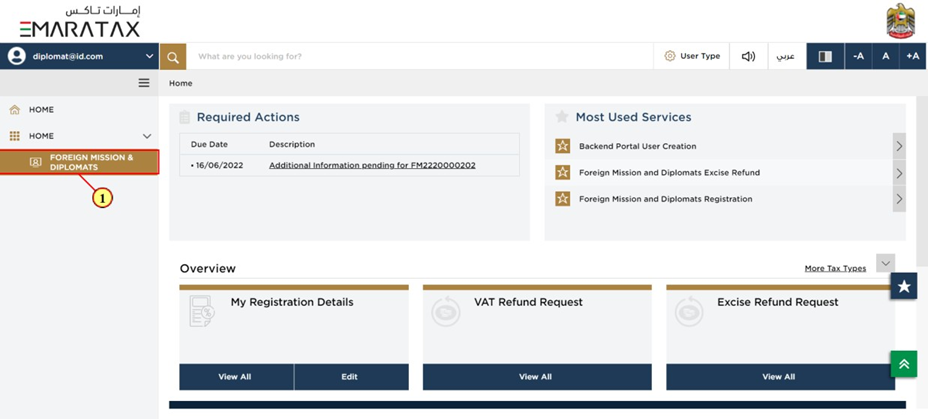
Logged in User Dashboard

|
Step |
Action |
|
(1) |
Click here to navigate back to the logged in user’s dashboard screen. |
|
Step |
Action |
|
(1) |
Click here to view the Foreign Mission & Diplomats |
Footer Section
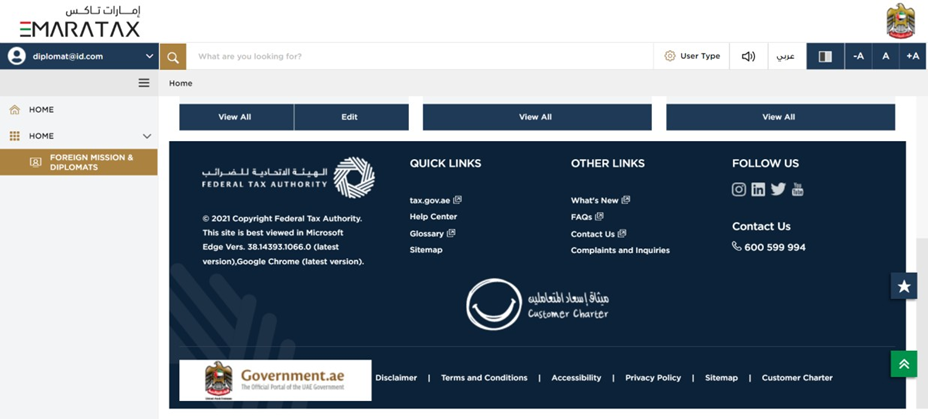
 | The footer section contains the following information for quick and easy navigation of the logged in user Quick Links 1. Tax.Gov.ae –Federal Tax Authority website’s home page 2. Help Center – Repository of all user manuals and tutorials 3. Glossary – Contains explanation of keywords used in the FTA website 4. Site map – Provides a list of all the page in the EmaraTax website Other links 1. What’s New – This section lists the announcements and newly added content in the FTA 2. FAQ’s - All frequently... |