EX 203H - Local Purchase Declaration - User Manual
Status
Issuing Authority
Document Control Information
Document Version Control
| Version No. | Date | Prepared/Reviewed by | Comments |
| 1.0 | 28-May-24 | Federal Tax Authority | User Manual for EmaraTax Portal |
Annexure
The below are the list of User manuals that you can refer to
| S. No | User Manual Name | Description |
| 1 | Register as Online User | This manual is prepared to help you navigate through the Federal Tax Authority (FTA) website and create an EmaraTax account with the FTA. |
Navigating through EmaraTax
The Following Tabs and Buttons are available to help you navigate through this process
| Button | Description |
| In the Portal | |
The Federal Tax Authority offers a range of comprehensive and distinguished electronic services in order to provide the opportunity for taxpayers to benefit from these services in the best and simplest ways. To get more information on these services Click Here
Introduction

|
|
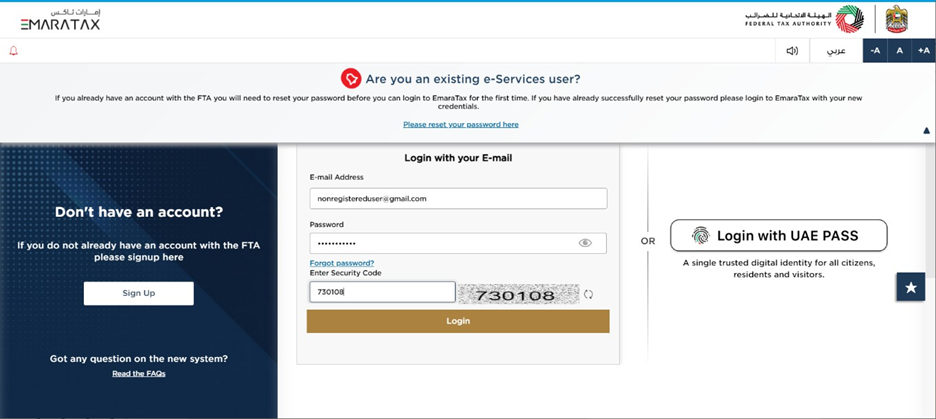
- You can login into the EmaraTax account using your login credentials or using UAE Pass. If you do not have an EmaraTax account, you can sign-up for an account by clicking the ‘sign up’ |

|
Step |
Action |
|
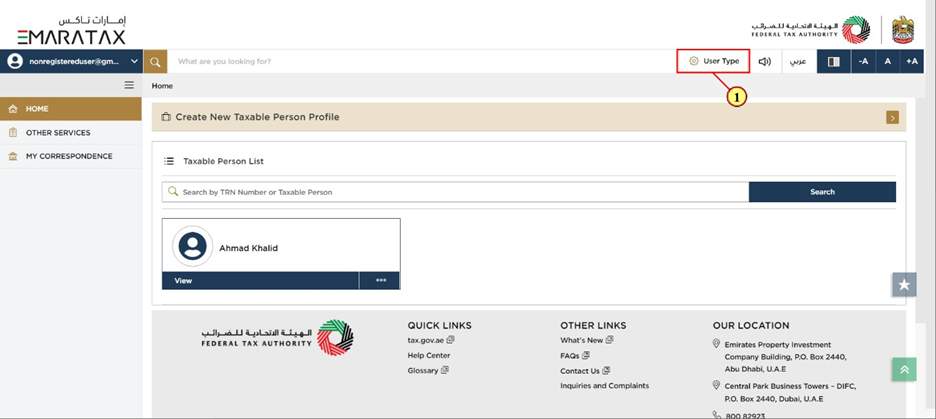
(1) |
Click here to select the user type |

|
Step |
Action |
|
(1) |
Select the Taxable Person tile |
|
Step |
Action |
|
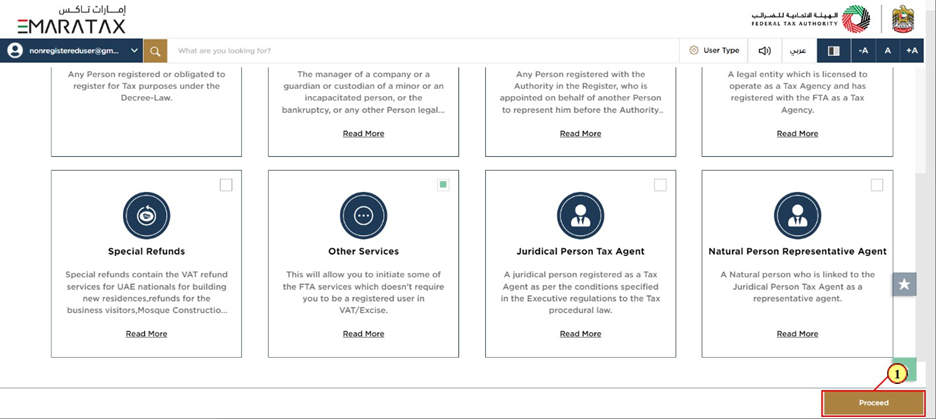
(1) |
Click on 'Proceed' to proceed to the Taxable Person |
|
Step |
Action |
|
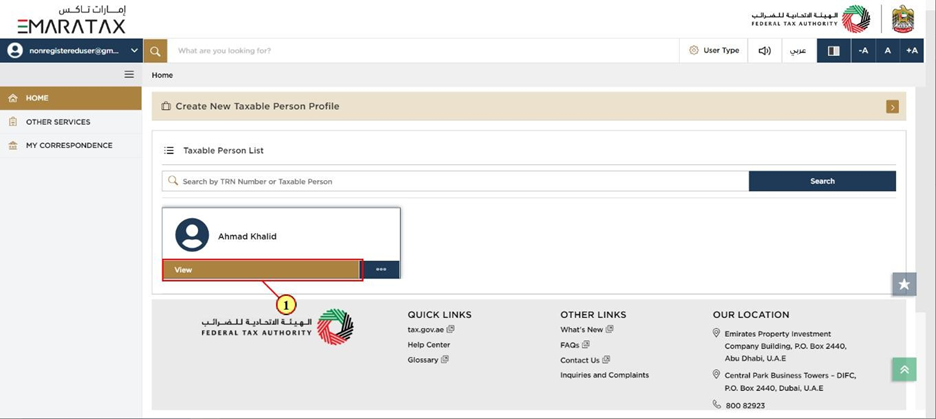
(1) |
Click here to view the Taxable Person dashboard |
|
Step |
Action |
|
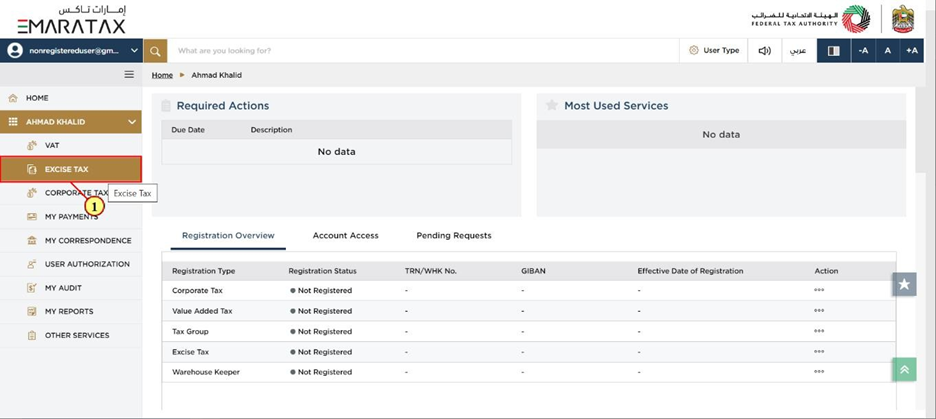
(1) |
Click here to access Excise Tax module |
|
Step |
Action |
|
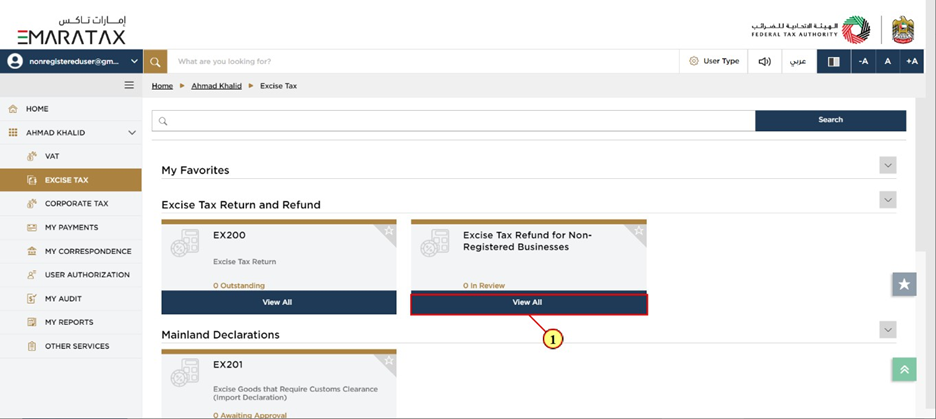
(1) |
Click here to view the dashboard of Non Registered businesses |
EX 203H- Non-Registered Local Purchase
Declaration Dashboard

|
Step |
Action |
|
(1) |
Click on 'New Declaration' to create a new Non-Registered Business Local Purchase declaration. |
Instructions And Guidelines for EX 203H- Non-
Registered Local Purchase Declaration Dashboard
|
|
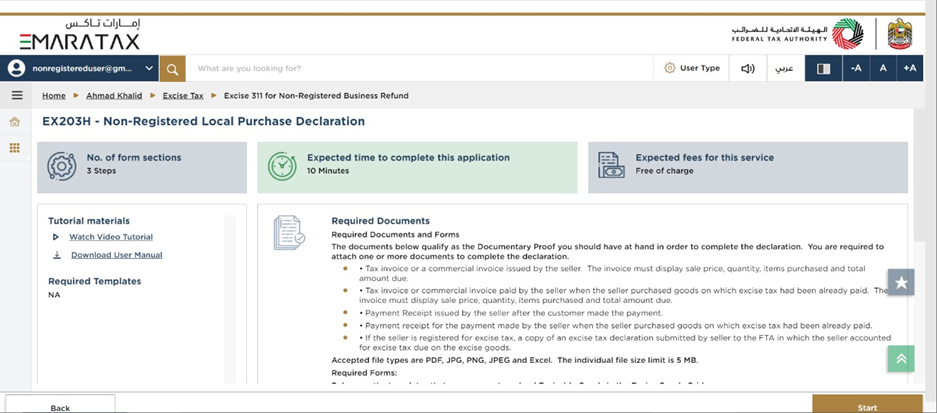
These are the instructions and guidelines which detail key information such as required templates, supporting documentation, eligibility criteria and the expected time to complete this declaration. |
|
Step |
Action |
|
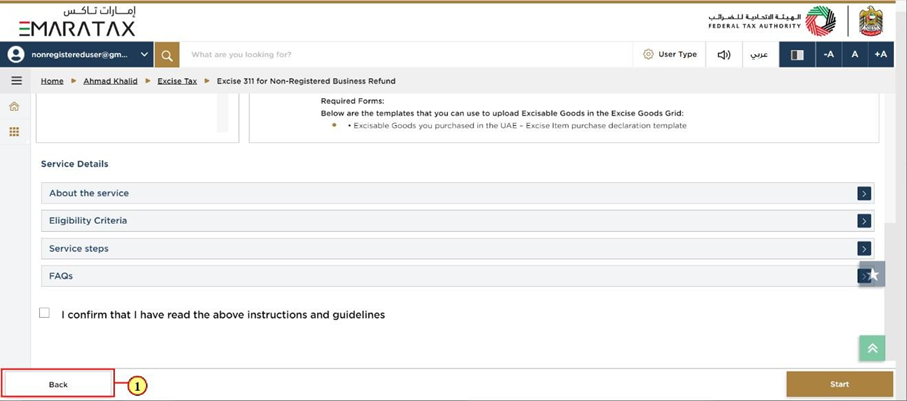
(1) |
Click on 'Back' to go back to the previous page |

|
Step |
Action |
|
(1) |
Mark the checkbox to confirm that you have read and understood the instructions and guidelines. |

|
Step |
Action |
|
(1) |
Click on 'Start' to proceed to the declaration. |
Basic Information
|
|
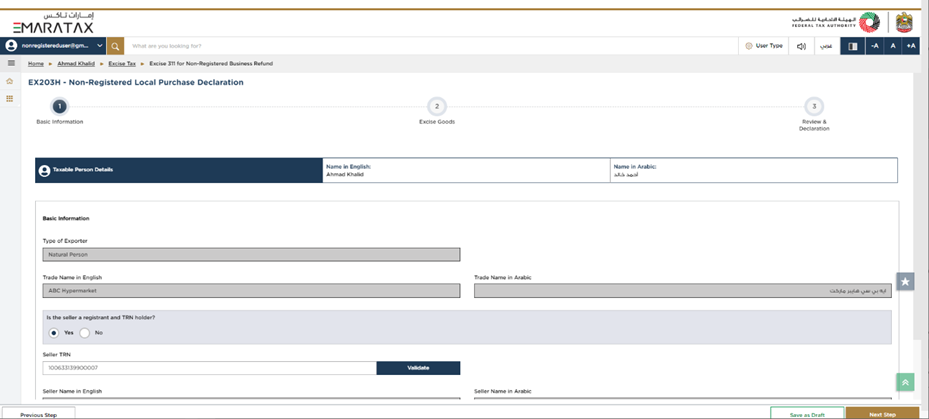
The progress bar displays the number of steps required to complete the declaration. The step you are currently in is highlighted in blue. Once you progress to the next section successfully, the previous step will be highlighted in green |
|
|
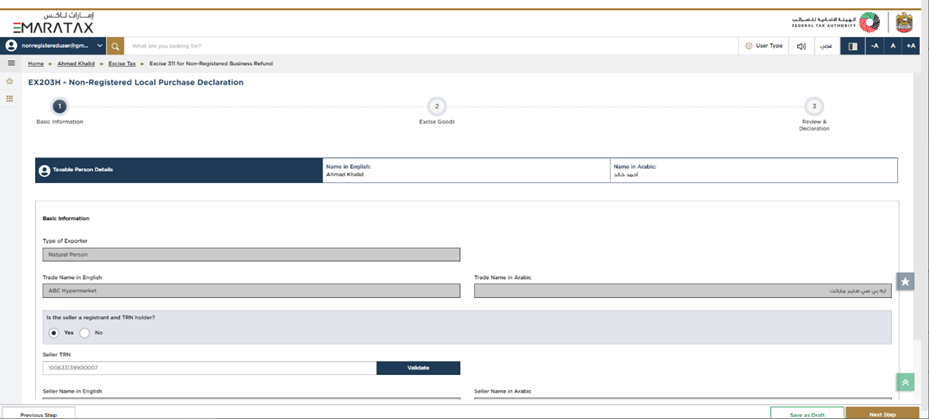
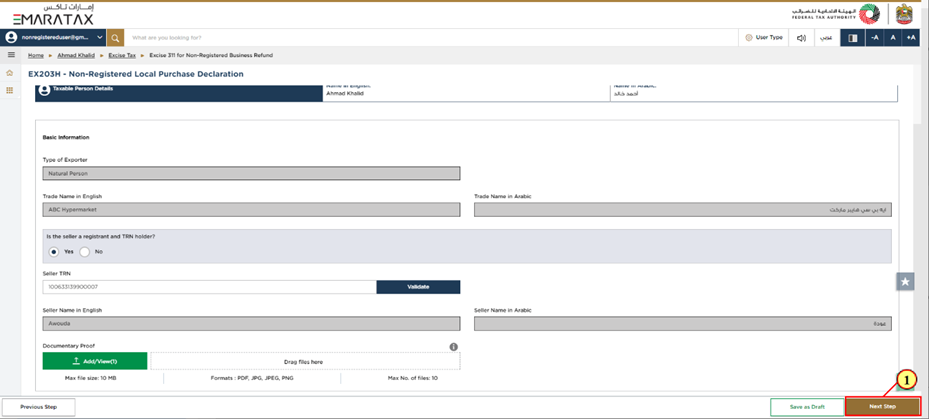
This section displays the basic details of the Non-Registered Business based on the data in Business details. |

|
Step |
Action |
|
(1) |
Select 'Yes' if the seller is registered for Excise Tax. |

|
Step |
Action |
|
(1) |
Enter the 'TRN' of the seller and click on 'Validate' |
|
|
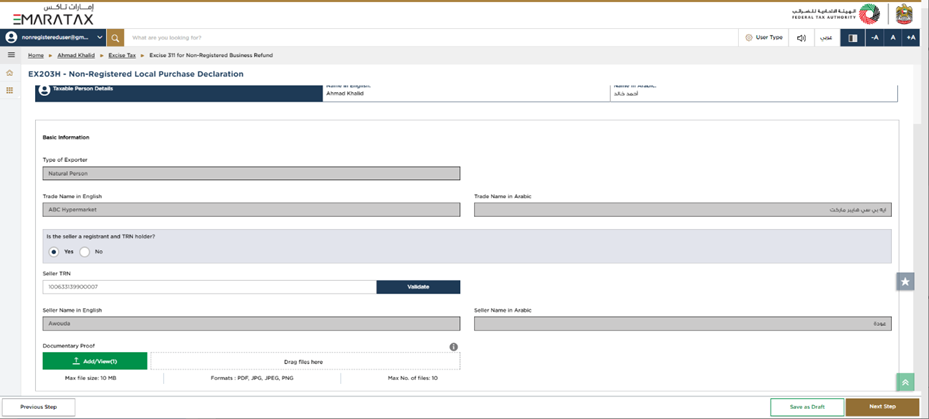
Once the Seller TRN is validated, the name of the seller will be pre-populated. |

|
Step |
Action |
|
(1) |
Click on 'Add' button or drag & drop your files to upload documentary proof. On successful upload of document, the 'Add' button will be highlighted in green |

|
Step |
Action |
|
(1) |
Click on 'Previous' to go back to the previous section. |
|
Step |
Action |
|
(1) |
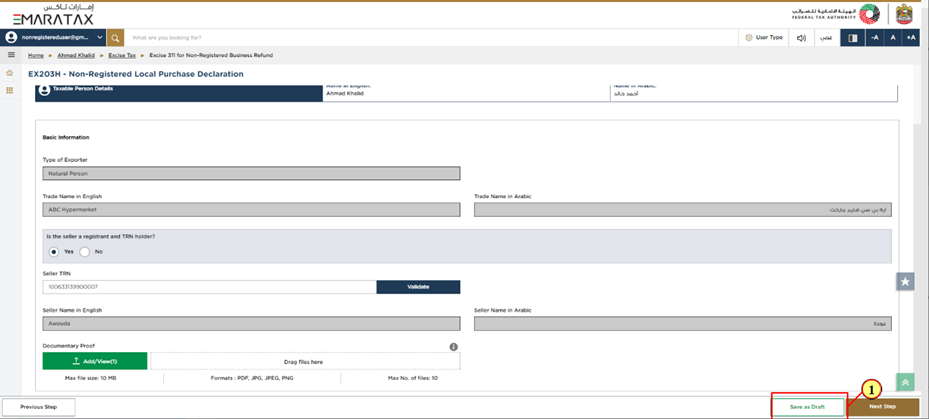
Click on 'Save as draft' to save the declaration as a draft. |
|
Step |
Action |
|
(1) |
Click on 'Next Step' to proceed to the next section. This is common across all steps. |
Excise Goods
|
Step |
Action |
|
(1) |
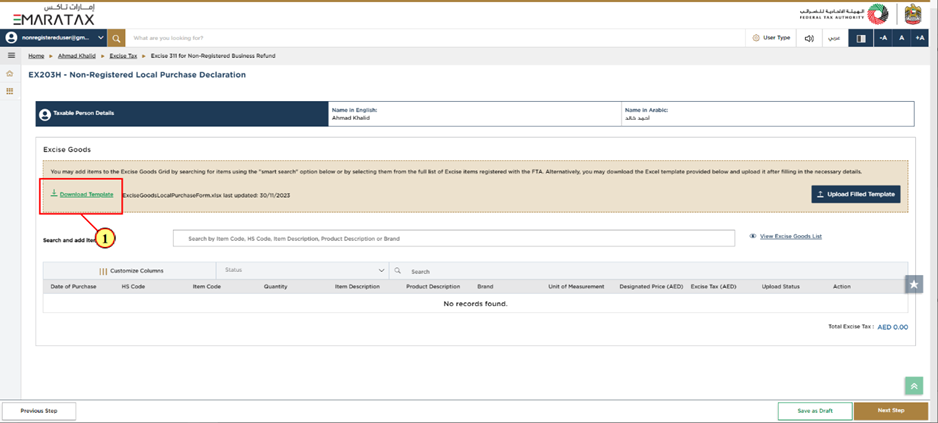
Click here to download the template that can be filled offline to directly upload items to the Excise Goods grid. |

|
Step |
Action |
|
(1) |
Click on 'Upload Filled Template' to upload a completed template. Once the template has been uploaded, the items will populate in the Excise Goods grid. |

|
Step |
Action |
|
(1) |
Click here to download the uploaded template. |
|
Step |
Action |
|
(1) |
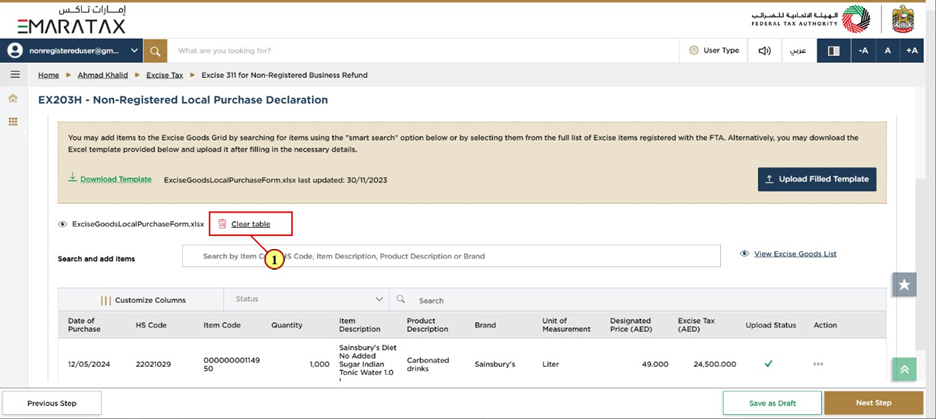
Click here to clear the Excise Goods grid. |
|
Step |
Action |
|
(1) |
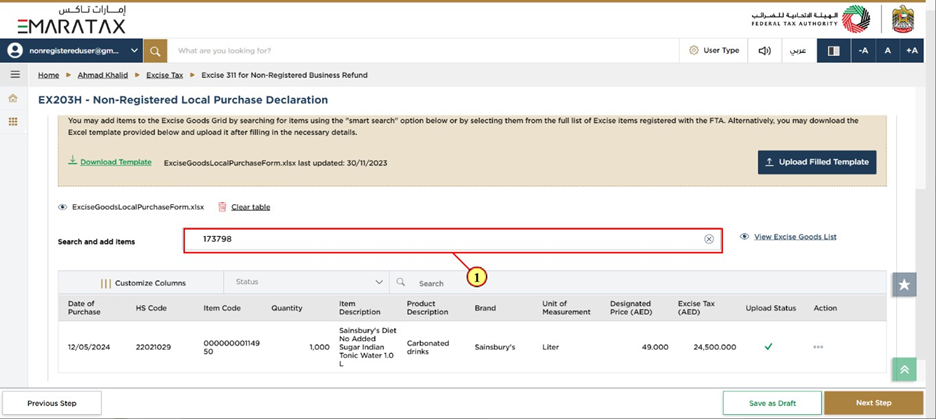
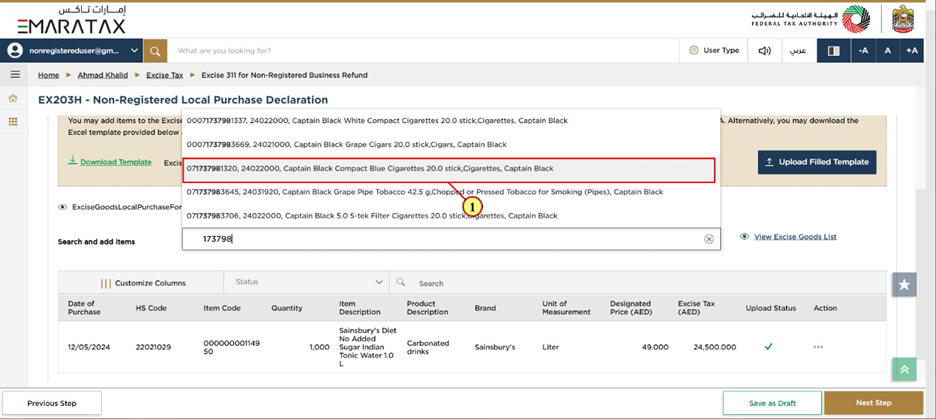
Use this search box to find goods that are published in the FTA's Excise Goods list. |
|
Step |
Action |
|
(1) |
Select the required item from the search result. |

|
Step |
Action |
|
(1) |
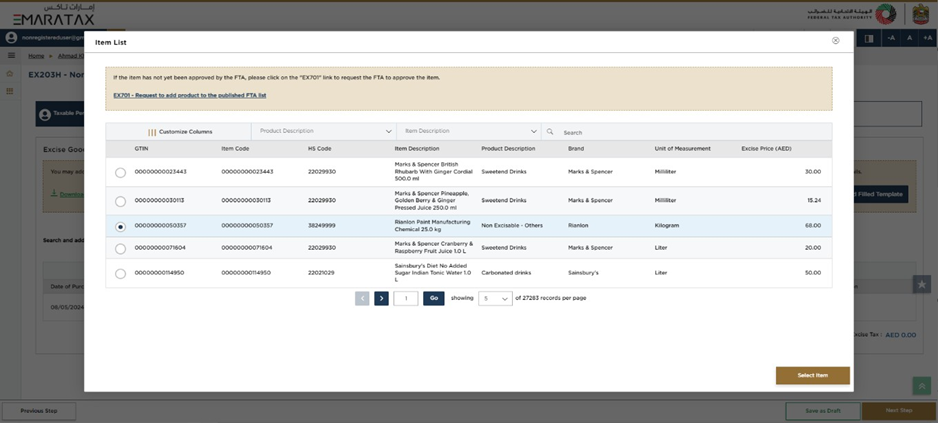
Click here to view the FTA's Excise Goods list. |

|
Step |
Action |
|
(1) |
Click here to submit a request for adding a new item to the FTA's Excise Goods list. |
|
|
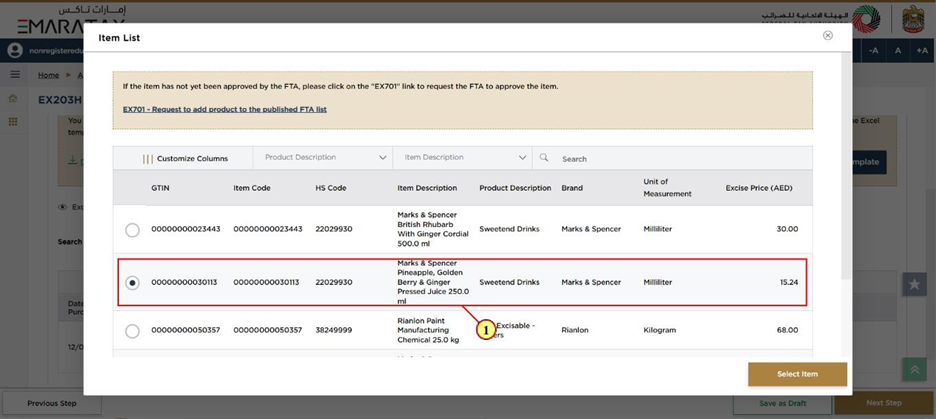
You can add a new column to the table or filter Excise Goods by product or item description. You can also search for Excise Goods by item or HS code. |
|
Step |
Action |
|
(1) |
Select the required item that you wish to add to the declaration. |

|
Step |
Action |
|
(1) |
Click on 'Select Item' to include the item in the declaration. |

|
|
Details... |