Corporate Tax Amend Registration - Taxpayer User Manual
Status
Issuing Authority
Navigating through EmaraTax
The Following Tabs and Buttons are available to help you navigate through this process
| Button | Description |
| In the Portal | |
The Federal Tax Authority offers a range of comprehensive and distinguished electronic services in order to provide the opportunity for taxpayers to benefit from these services in the best and simplest ways.
Introduction

Login to EmaraTax
 |
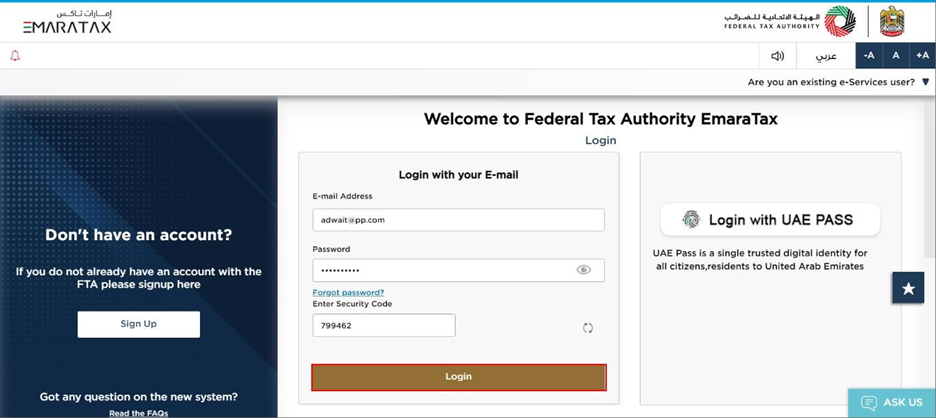
You can login into the EmaraTax account using your login credentials or using UAE Pass. If you have forgotten your password, you can use the 'Forgot password' feature to reset your password. |
|
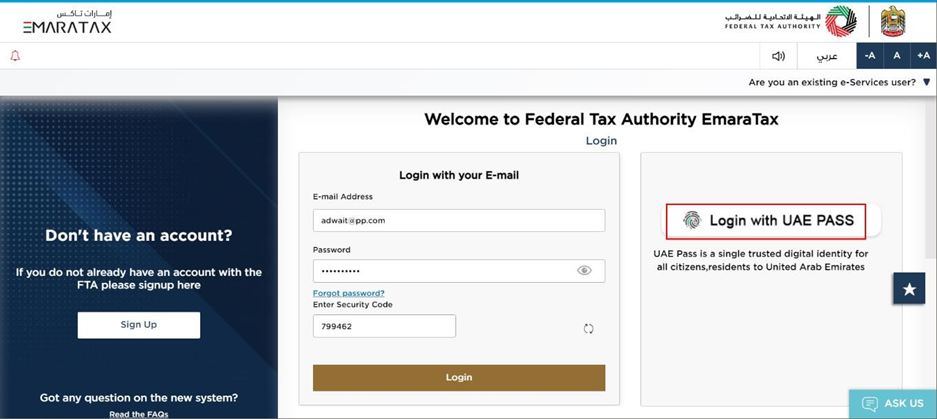
If you wish to login via UAE Pass, you will be redirected to UAE Pass. On successful UAE Pass login, you will be redirected back to the EmaraTax online user dashboard. |
| Step | Action |
| (1) |
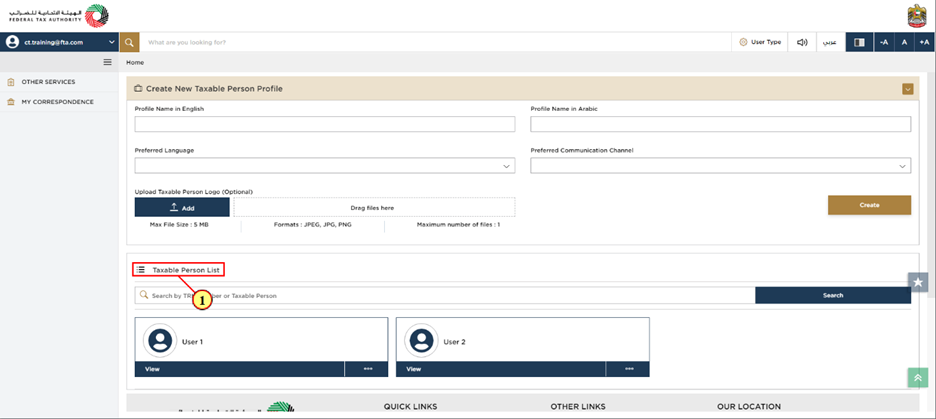
On successful login, the Taxable Person list screen is displayed. It displays the list of the Taxable Person linked to your EmaraTax user profile. |
| Step | Action |
| (1) |
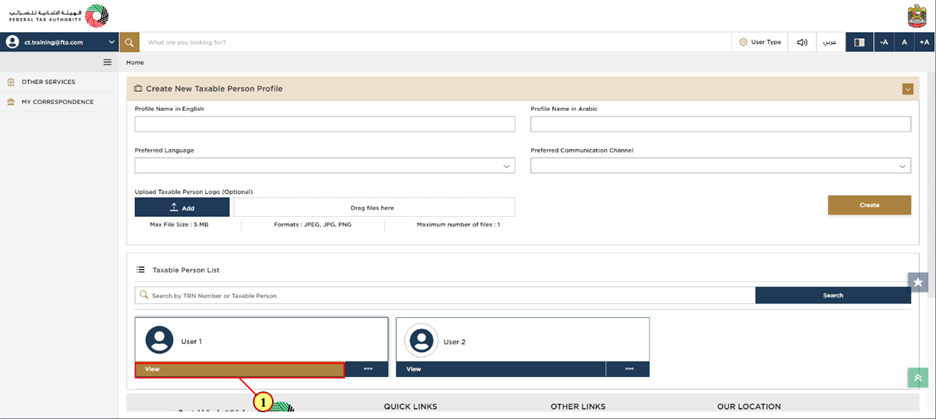
Select the Taxable Person from the list and click 'View' to open the dashboard. |
Corporate Tax Tile
| Step | Action |
| (1) |
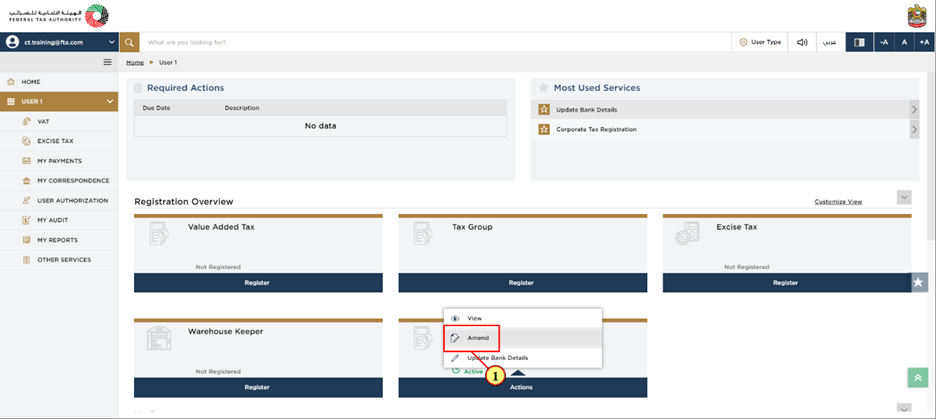
In order to initiate Corporate Tax Amendment application, click on ‘Actions’ in the Corporate Tax tile and select ‘Amend’. |
Instructions and Guidelines
|
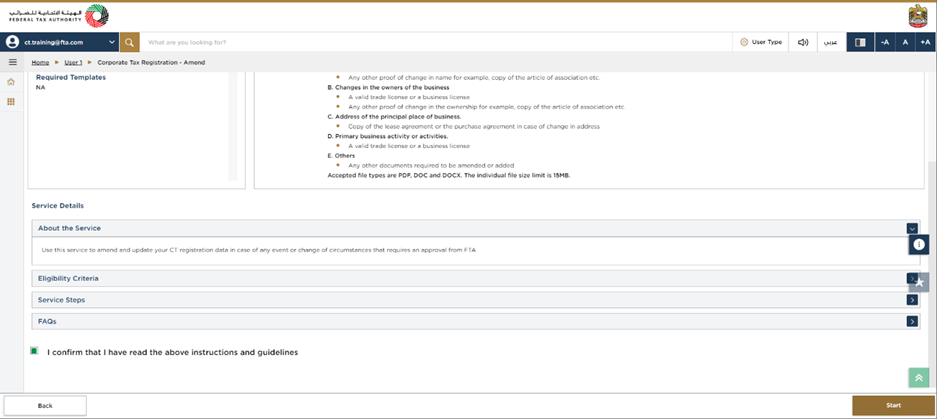
The ‘ instructions and guidelines’ page is designed to help you understand certain important requirements relating to amending your Corporate Tax registration application. It also provides guidance on what information you should have in hand when you are editing the Corporate Tax registration application. |
| Step | Action |
| (1) |
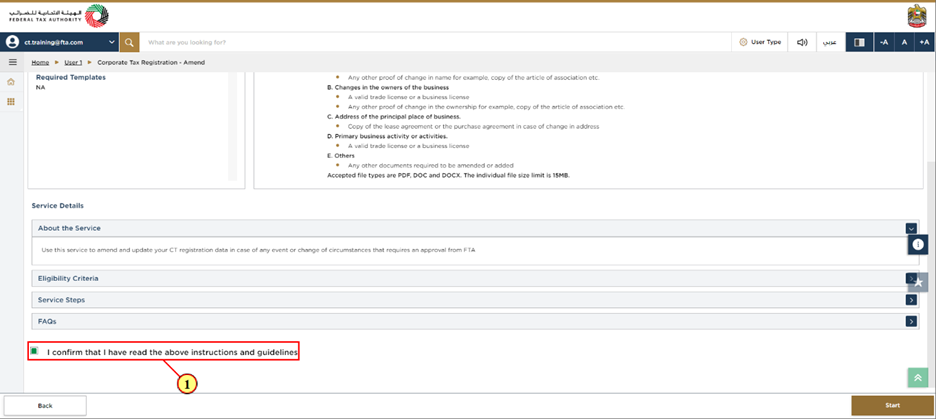
A screen will appear with instructions and guidelines. Read the instructions and guidelines for amending the Corporate Tax Registration application and mark the checkbox to confirm. |
| Step | Action |
| (1) |
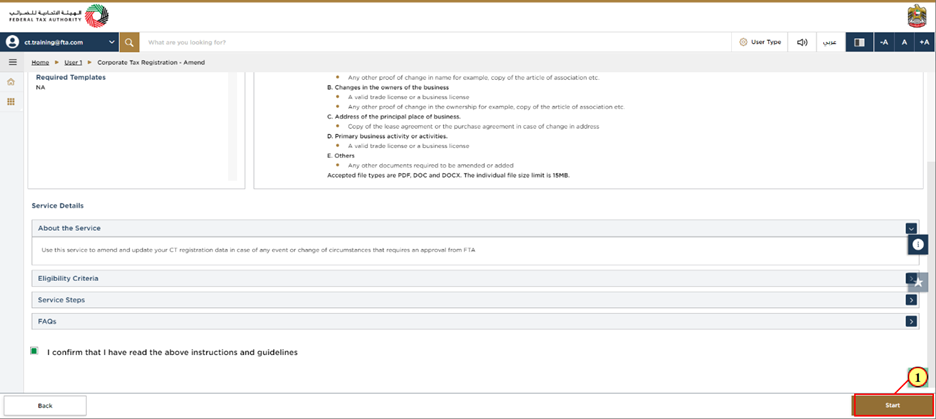
Click ‘Start’ to initiate Corporate Tax Amendment application. |
Entity Details Section
|
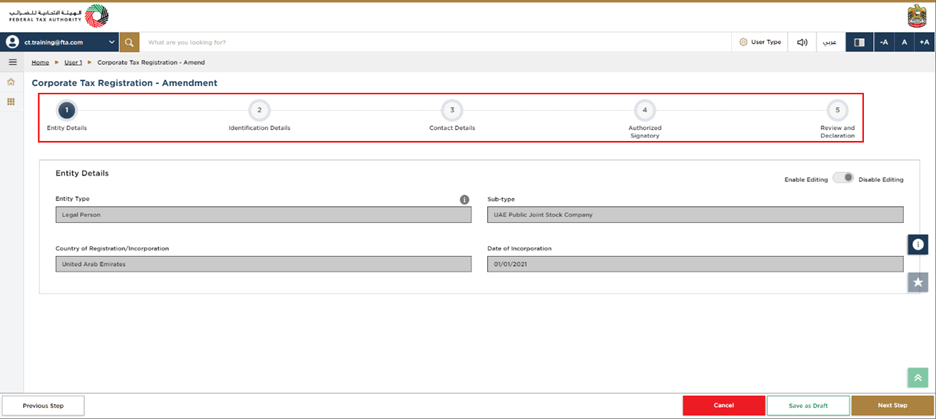
- The registration amendment application has been divided into five short sections, each section being represented in the progress bar. The current section will get highlighted in blue color on the progress bar. As you move to the next steps, the completed sections will get highlighted in green color. - In order to move from one section to the next, all mandatory fields of the current section must be entered. The fields which are optional are marked as optional next to the field name. - You are requested to ensure that the documents submitted, supports the information entered by you in the application. This would help to avoid any rejection or resubmission of the application later. |
| Step | Action |
| (1) |
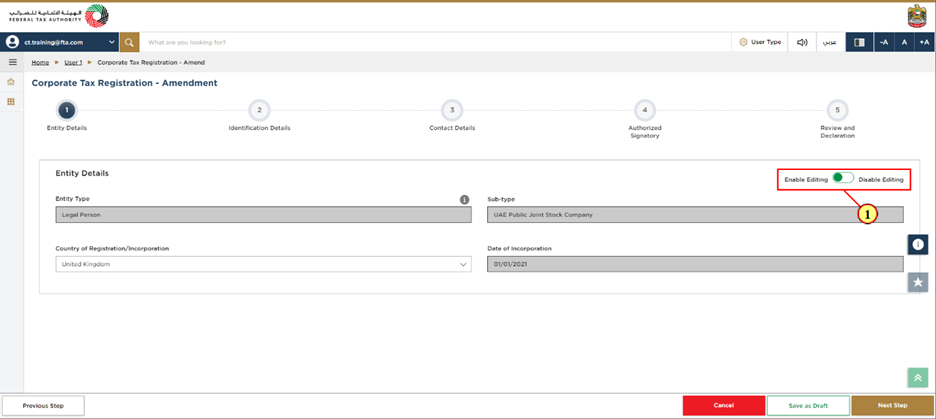
- Select 'Enable Editing', to amend entity details, if required. Upon selection, the fields in the section will become editable. - If you do not want to amend the section and have selected ‘Enable Editing’, select ‘Disable Editing’ so that the fields become non editable. - You may click on ‘Save as Draft’ to save your application and return to continue working on your application later. |
| Step | Action |
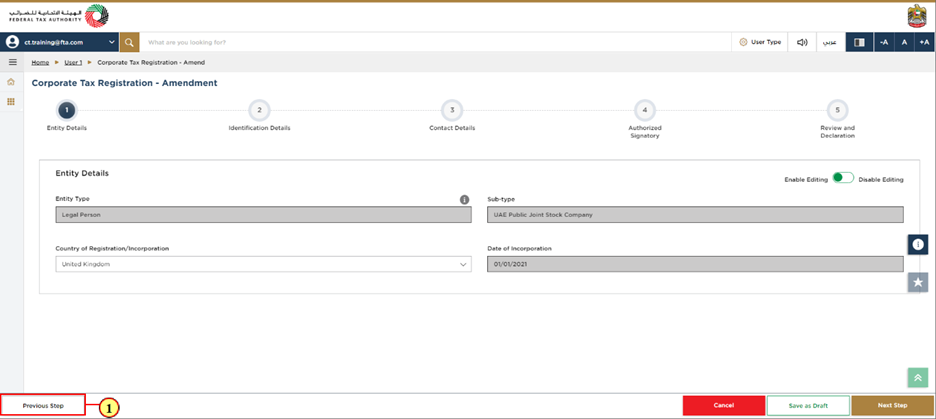
| (1) | Click ‘Previous Step’ to save and return to the previous section. |
| Step | Action |
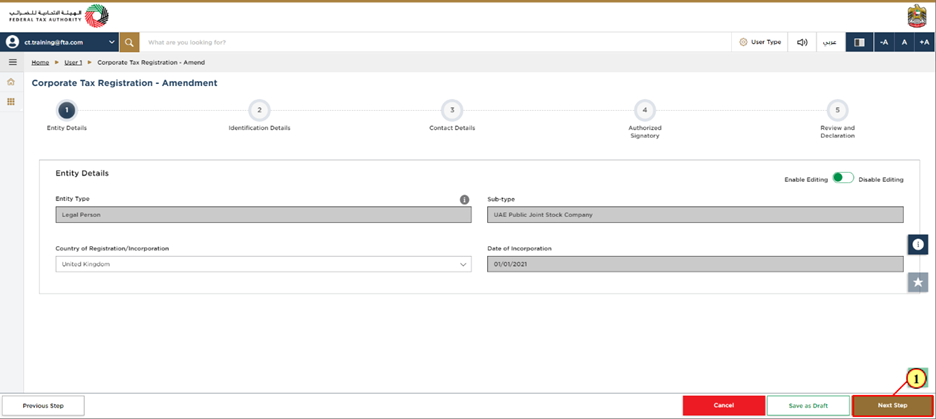
| (1) | After amending the required information, click ‘Next Step’ to save and proceed to the 'Identification Details' section. |
Identification Details
Main License Details
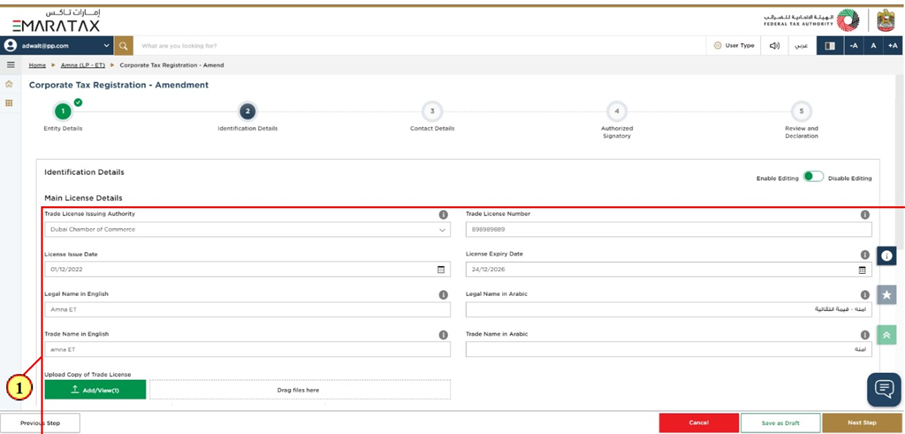
| Step | Action |
| (1) |
- Select ‘Enable Editing’ to amend identification details, if required. - You may update the main trade license details and enter the License Expiry Date. Some fields are not amendable. The greyed-out fields cannot be updated. |
Business Activities
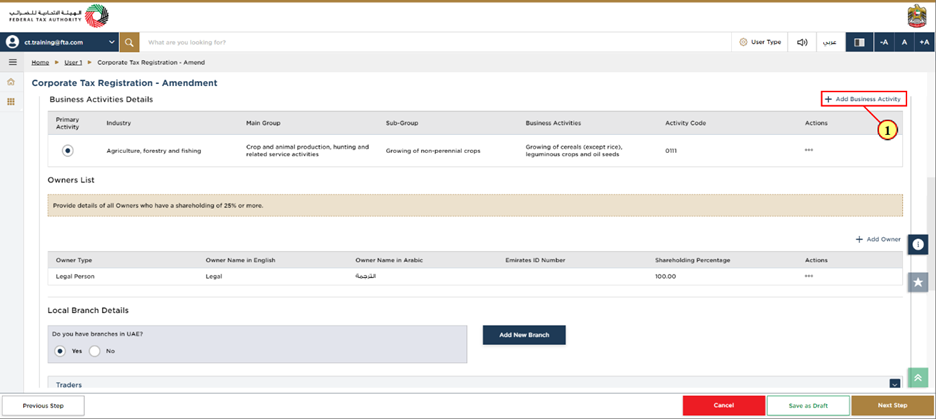
| Step | Action |
| (1) |
Similarly, if required you may update the Business Activities. Business Activity Details can be updated by adding a new business activity or editing the registered business. Click on ‘Add Business Activity’ to enter the business activity information associated to the trade license. You can add multiple Business Activities. Ensure that the information about all your business activities is included. |
Owner Details
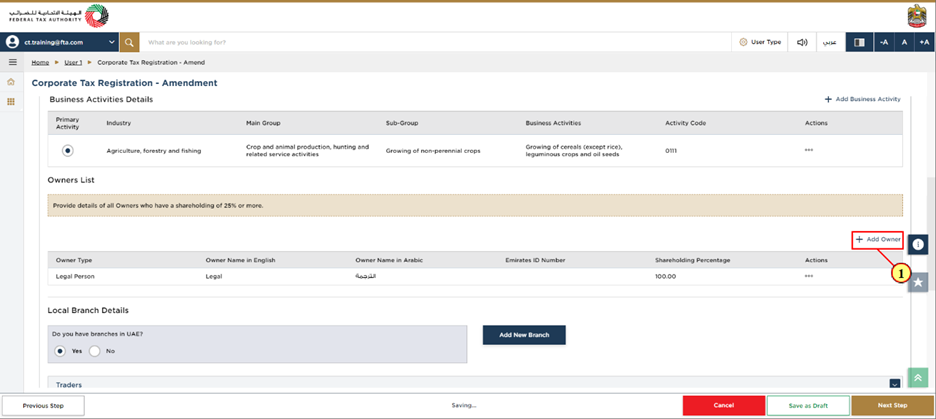
| Step | Action |
| (1) |
You may update the owner details by clicking ‘Add Owner’. Owner Details can be updated by adding a new owner or editing the registered owner. You are required to enter all the owners’ associated to the trade license. You can add multiple owners. |
Branch Details
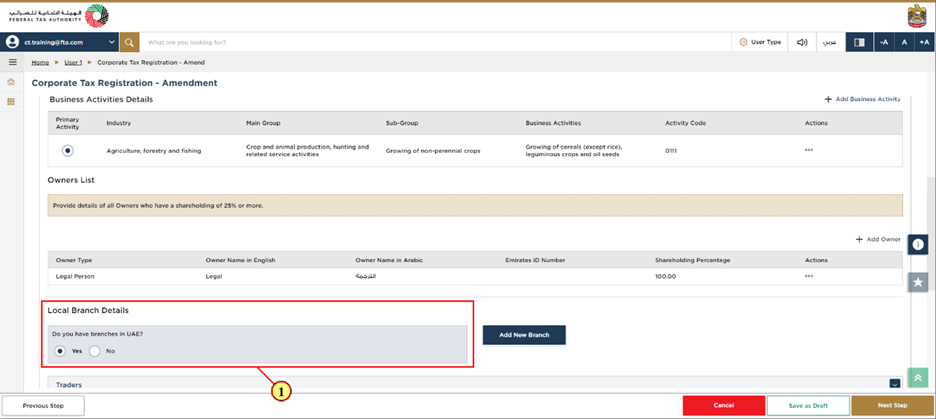
| Step | Action |
| (1) |
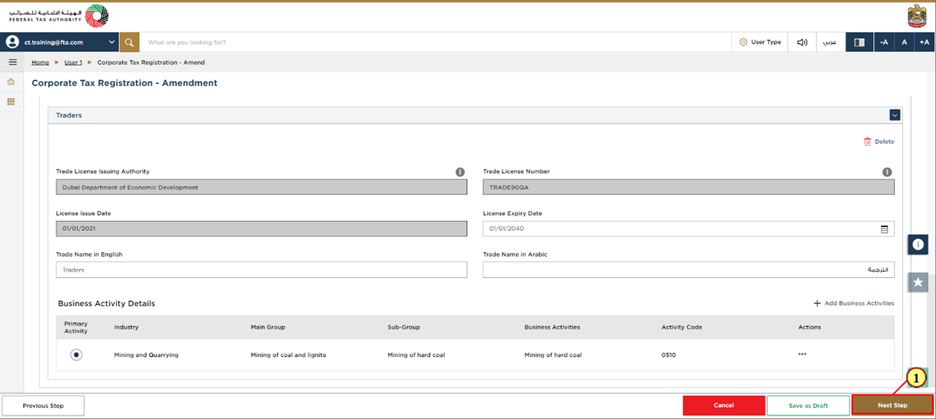
You may update your branch details. Select ‘Yes’, if you have one or more branches, and add the local branch details. For each branch, enter the trade license details and associated business activities and owners list. |
| Step | Action |
| (1) |
After completing all mandatory fields, click ‘Next Step’ to save and proceed to the ‘Contact Details' section. |
Contact Details
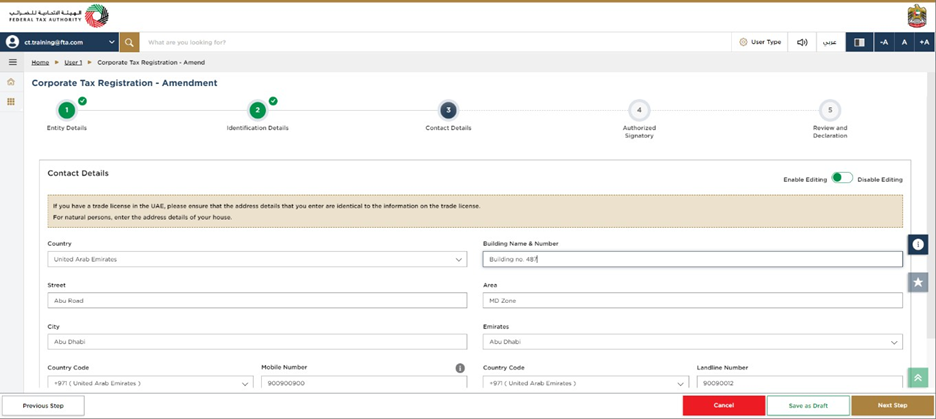
| If you have multiple addresses, provide details of the place where most of the day-today activities of the business are carried out... |