Amend Designated Zone - User Manual
Status
Issuing Authority
Document Control Information
Document Version Control
| Version No. | Date | Prepared/Reviewed by | Comments |
| 1.0 | 01-Oct-22 | Federal Tax Authority | User Manual for EmaraTax Portal |
Annexure
The below are the list of User manuals that you can refer to
| S. No | User Manual Name | Description |
| 1 | Register as Online User | This manual is prepared to help you navigate through the Federal Tax Authority (FTA) website and create an EmaraTax account with the FTA. |
Navigating through EmaraTax
The Following Tabs and Buttons are available to help you navigate through this process
| Button | Description |
| In the Portal | |
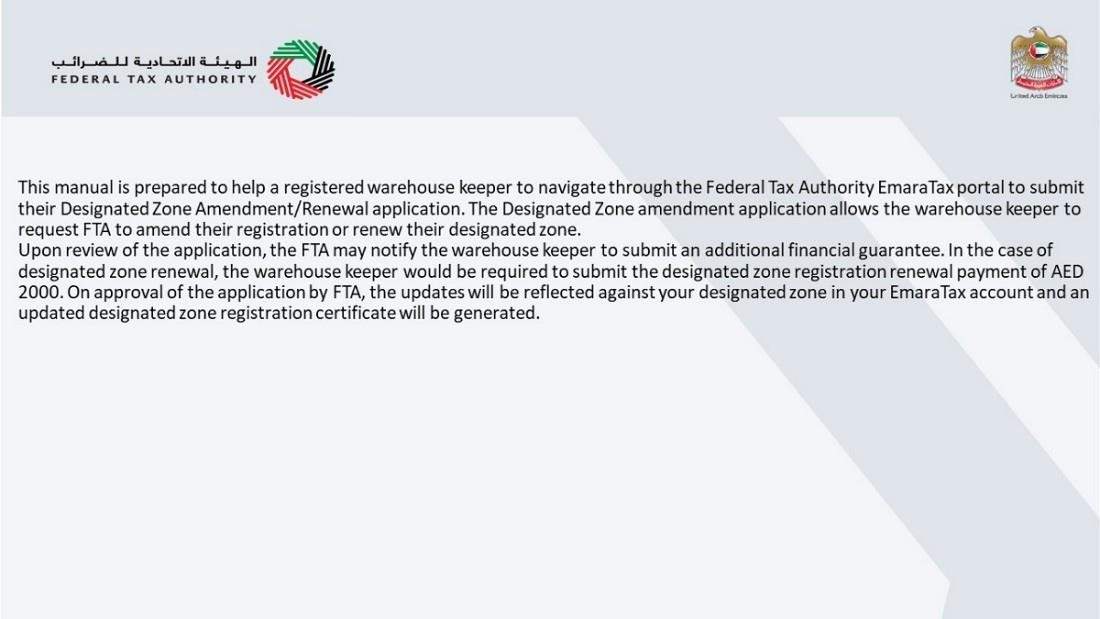
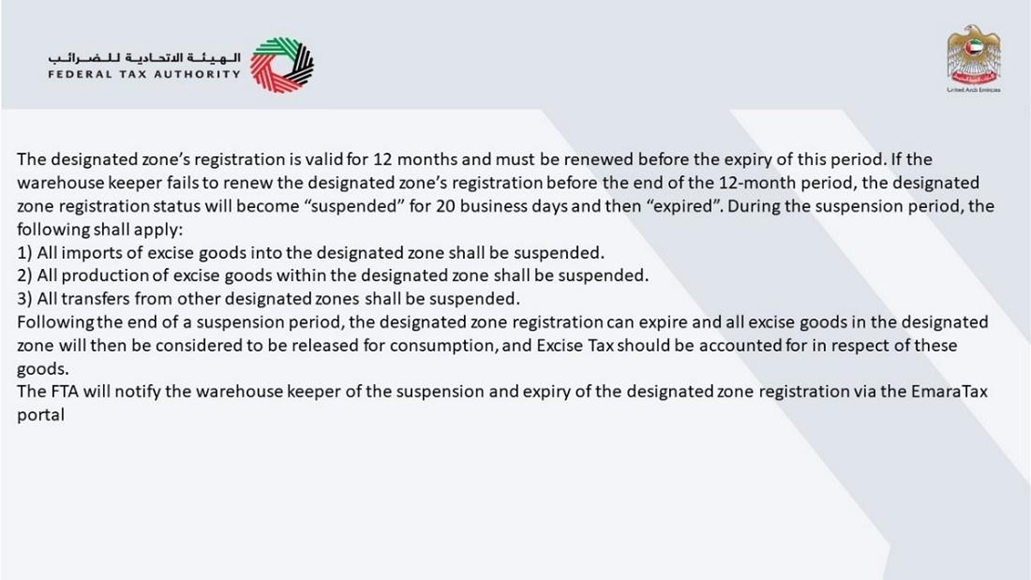
The Federal Tax Authority offers a range of comprehensive and distinguished electronic services in order to provide the opportunity for taxpayers to benefit from these services in the best and simplest ways. To get more information on these services Click Here
Introduction
Login to EmaraTax
|
|
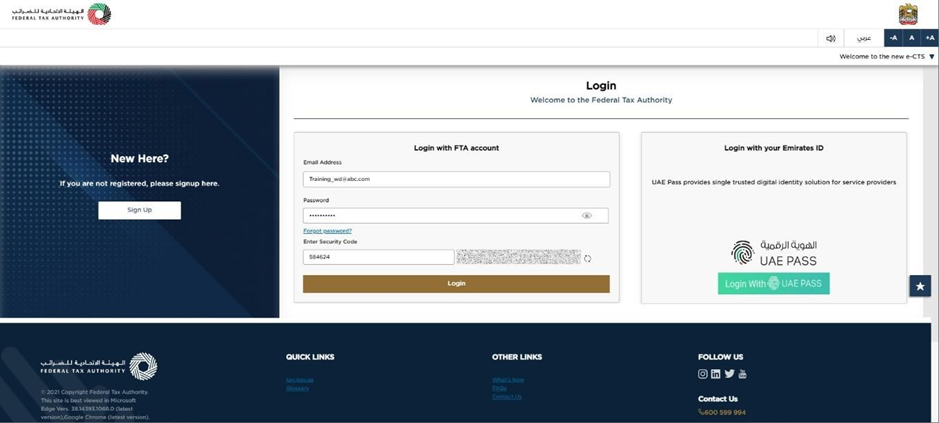
- You can login into the EmaraTax account using your login credentials or using UAE Pass. If you do not have an EmaraTax account, you can sign-up for an account by clicking the ‘sign up’ button. If you have forgotten your password, you can use the “forgot password” feature to reset your password.
- If you login via your registered email and password, on successful login, the EmaraTax online user dashboard will be displayed. If you had opted for 2 factor authentication, you will be required to enter the OTP received in your registered email and mobile number to successfully login.
- If you wish to login via UAE Pass, you will be redirected to UAE Pass. On successful UAE Pass login, you will be redirected back to the EmaraTax online user dashboard. |

Taxable Person Tile
|
Step |
Action |
|
(1) |
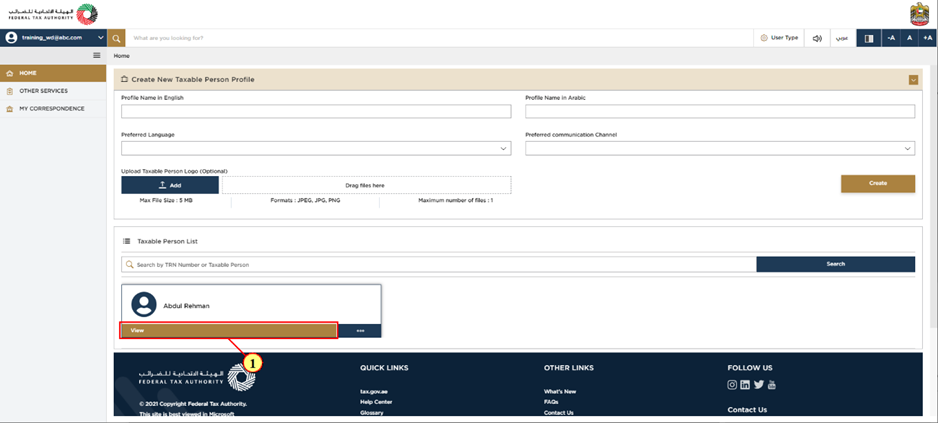
Click ‘View’ on the Taxable Person tile to view the Taxable Person dashboard. |
Designated Zone Management Tile

|
Step |
Action |
|
(1) |
Click ‘View’ on the Designated Zone Management tile to view the details of Designated Zones managed by the Warehouse Keeper. |
Amend Designated Zone
|
Step |
Action |
|
(1) |
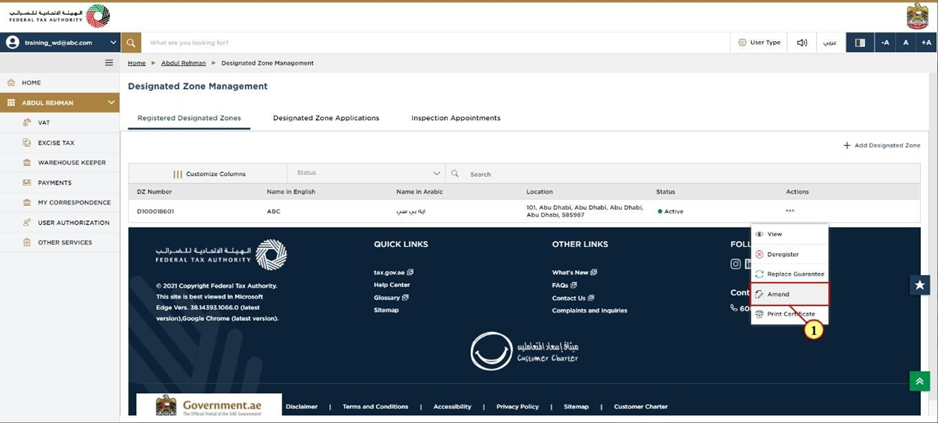
- Once you enter the Designated Zone Management tile, you are requested to refer to Registered Designated Zone Tab. A grid will be displayed with details of all the registered Designated Zones. |
|
|
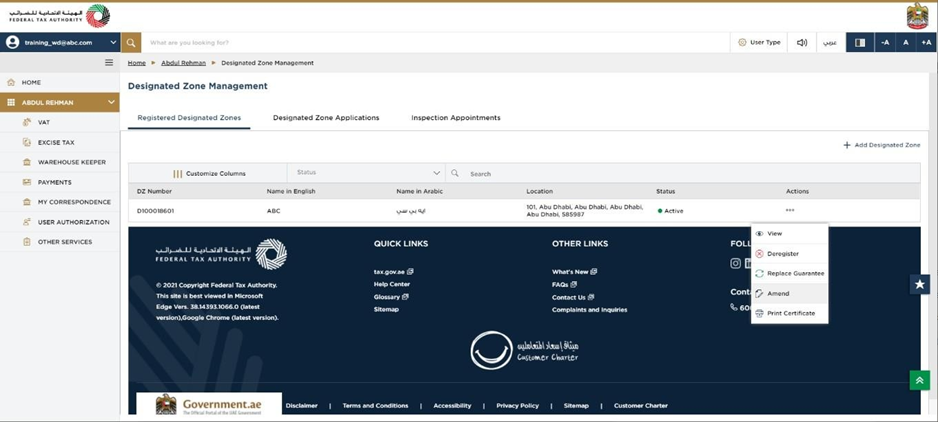
- The Designated Zones registered under the Warehouse Keeper will be displayed in this screen. - Some details will be pre-populated and editable, |
Guidelines and Instructions
|
|
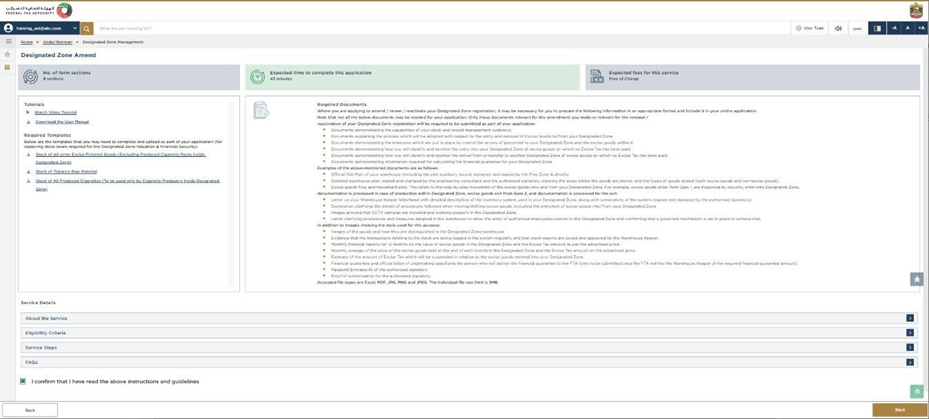
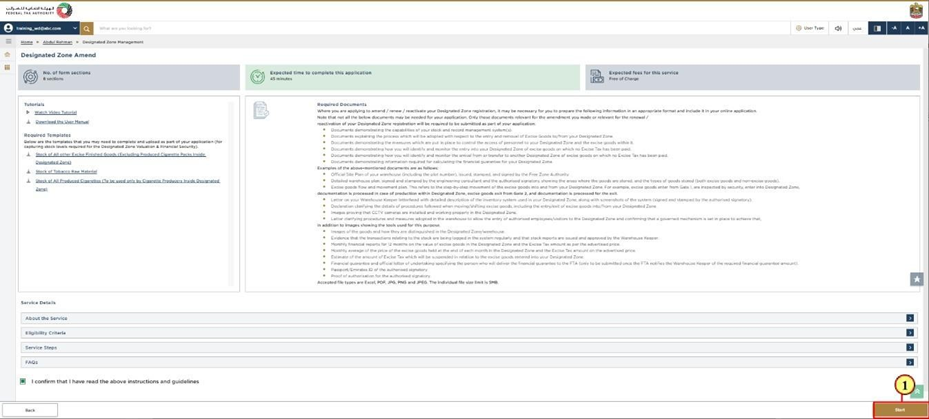
The ‘guidelines and instructions’ page is designed to help you understand certain important requirements related to Designated Zone amendment in the UAE. It also provides guidance on what information you should have in hand when you are completing the Designated Zone amendment application. |
|
Step |
Action |
|
(1) |
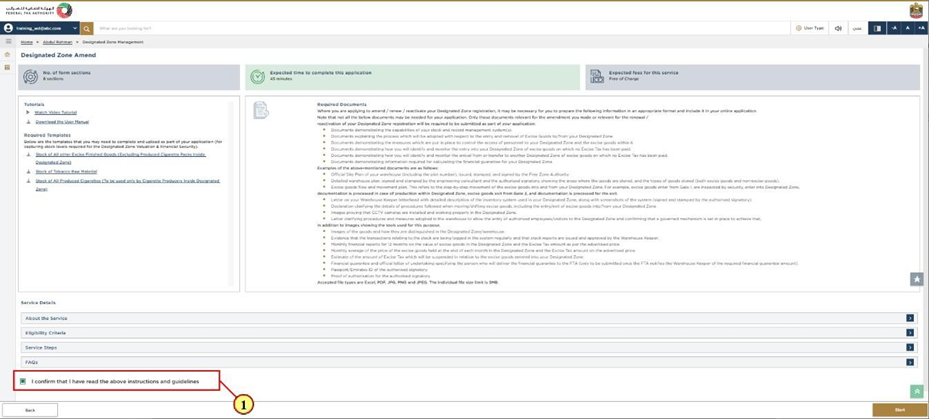
You are requested to read through the terms and conditions carefully. Once satisfied, click checkbox to agree the terms and conditions. |
|
Step |
Action |
|
(1) |
Click ‘Start’ to initiate the Designated Zone Amendment application. |
Details of Applicant Section
|
|
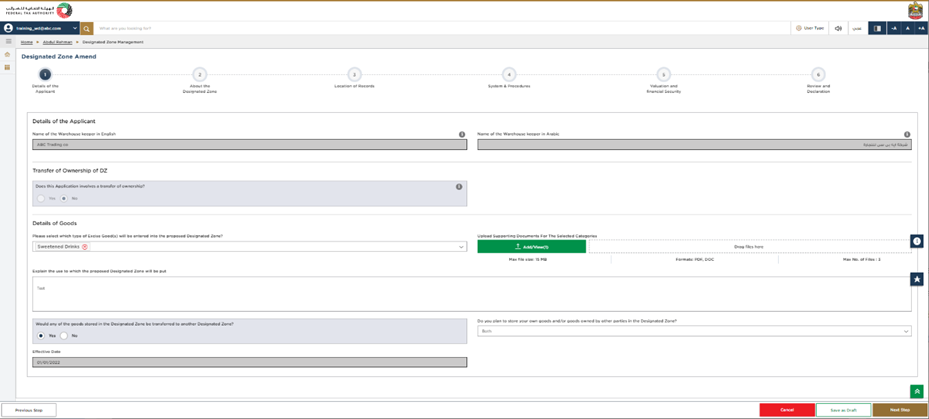
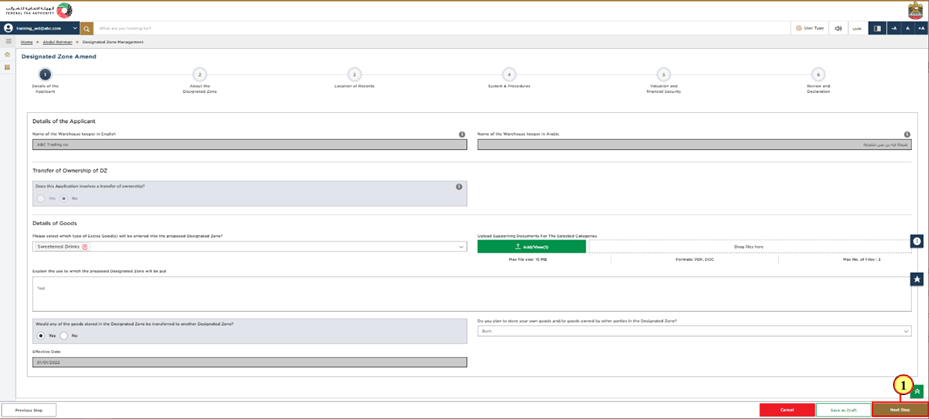
- The application is divided into several short sections which deal with various aspects of the registration process. The progress bar displays the number of sections required to complete the application. The section you are currently in is highlighted in blue. Once you progress to the next section successfully, the previous section will be highlighted in green. |
|
Step |
Action |
|
(1) |
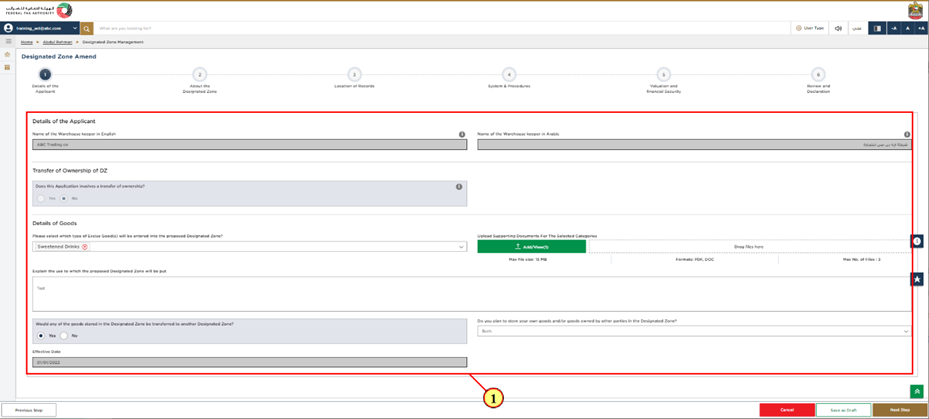
Amend Details of the Applicant section, if required. |
|
|
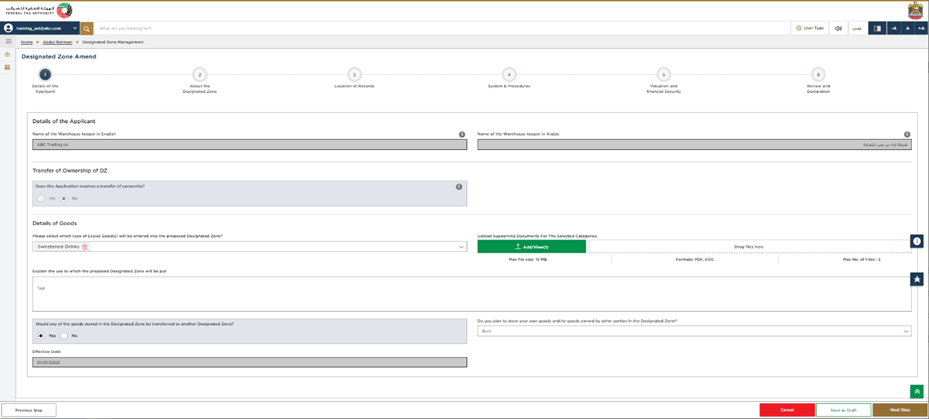
Transfer of ownership details and other details which cannot be amended are disabled for amendment. You will be able to update only the editable fields. |
|
Step |
Action |
|
(1) |
Click ‘Next Step’ to save and proceed to the next section. |
About the Designated Zone Section
|
Step |
Action |
|
(1) |
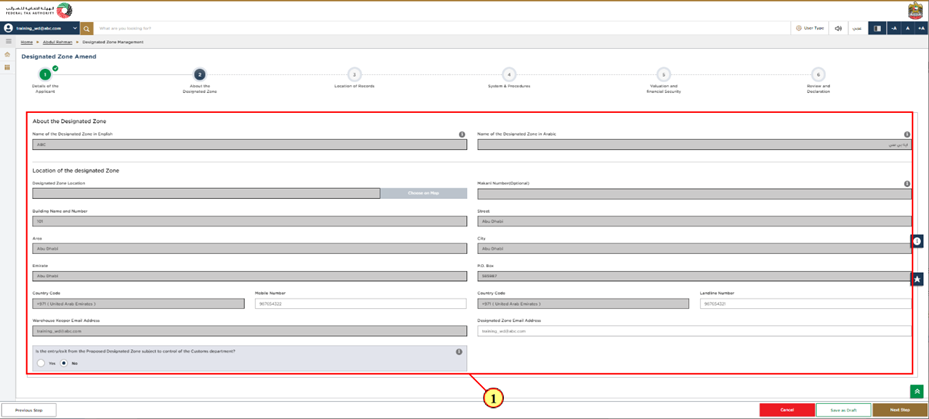
Amend About the designated Zone section, if required. |
|
Step |
Action |
|
(1) |
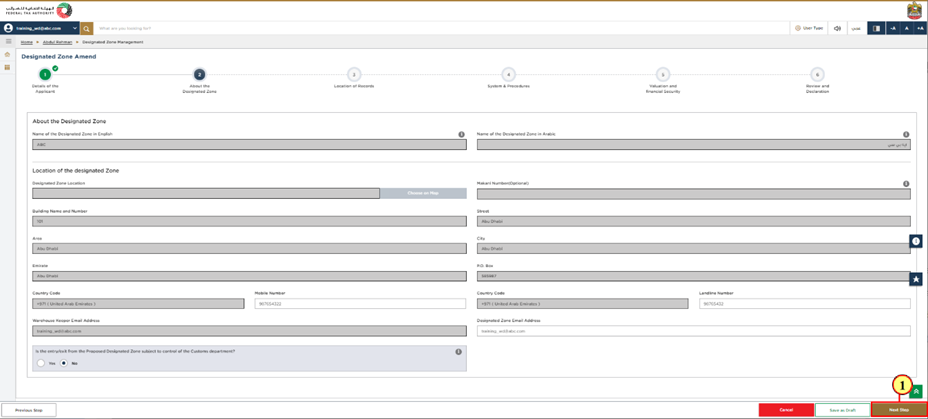
Click ‘Next Step’ to save and proceed to the next section. |
Location of Records Section
|
Step |
Action |
|
(1) |
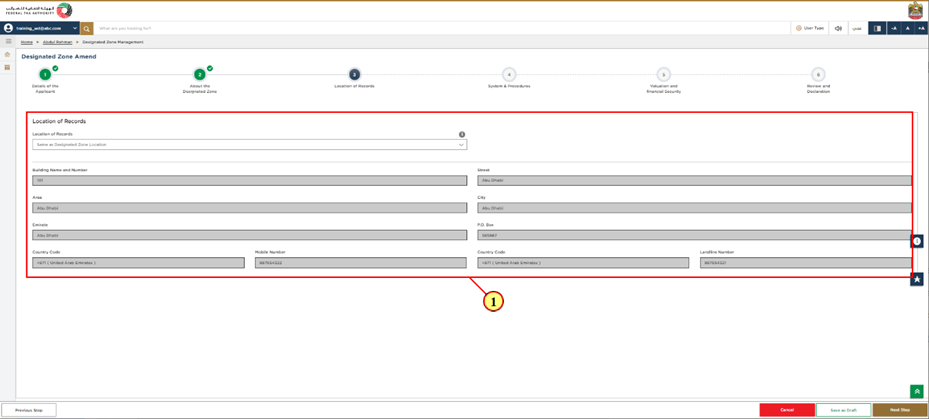
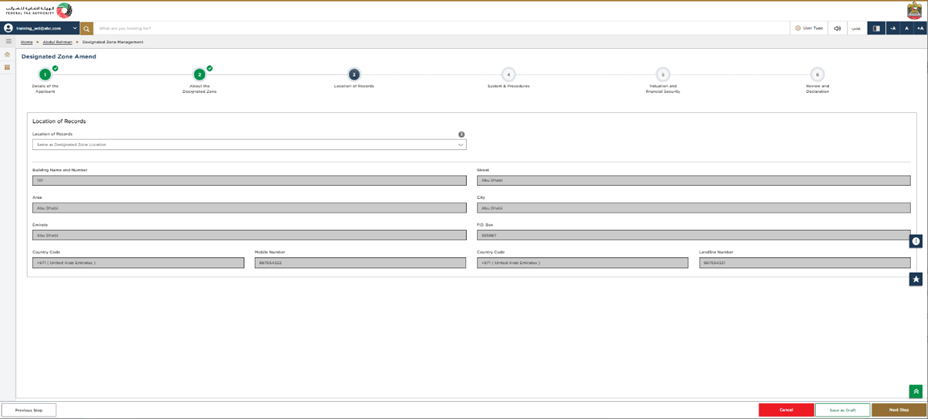
Amend Location of Records section, if required. |
|
|
A Warehouse Keeper is required to keep records of excise goods held in the Designated Zone at any time including the stock levels, the value and quantity of excise goods entering or leaving or produced within the Designated Zone and its destinations (example, another Designated Zone, third country, release for consumption). |
|
Step |
Action |
|
(1) |
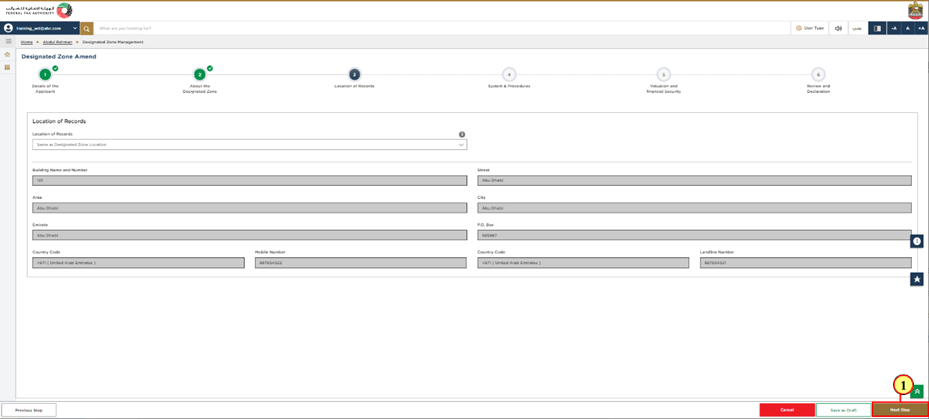
Click ‘Next Step’ to save and proceed to the next section. |
System and Procedures Section
|
Step |
Action |
|
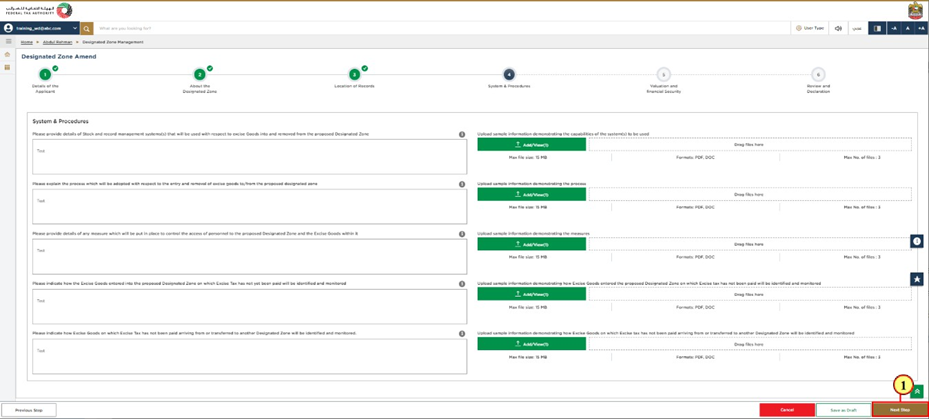
(1) |
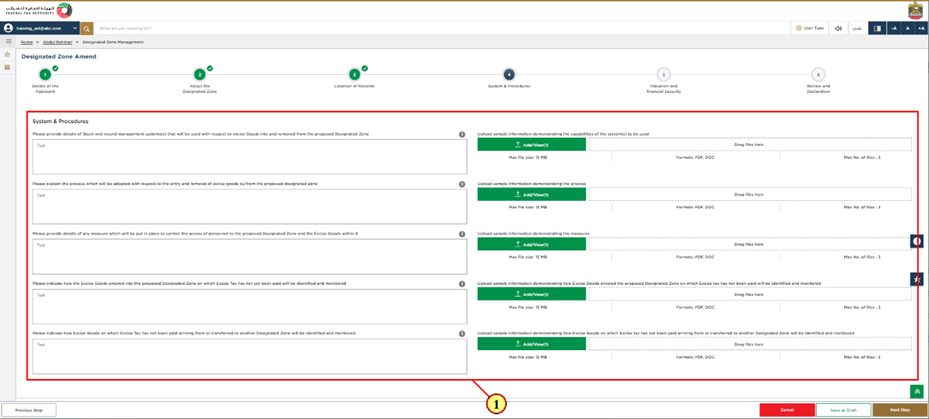
Amend System and procedures section, if required. |
|
|
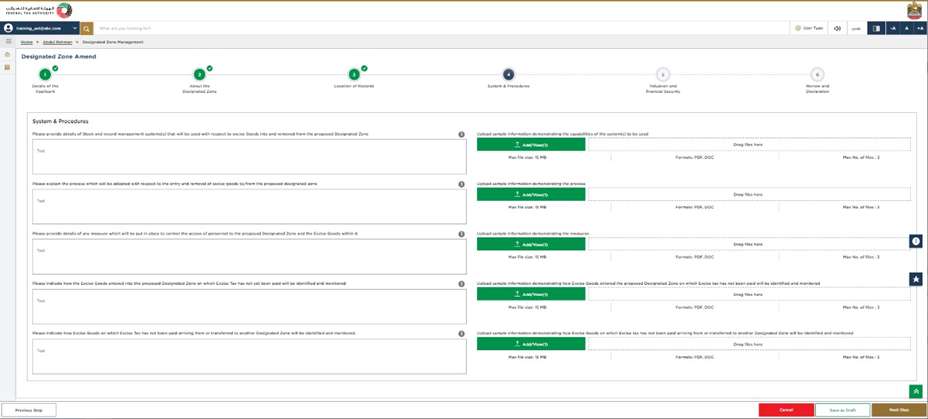
- Please provide details of the systems and procedures that you will use to ensure that goods entered into, held in and removed from the proposed Designated Zone are accurately recorded and Excise tax due thereon is properly determined and paid at the correct time. You are expected to provide full details; failure to do so will delay your application and may result in its rejection. |
|
Step |
Action |
|
(1) |
Click ‘Next Step’ to save and proceed to the next section. |
Valuation & Financial Security Section
|
|
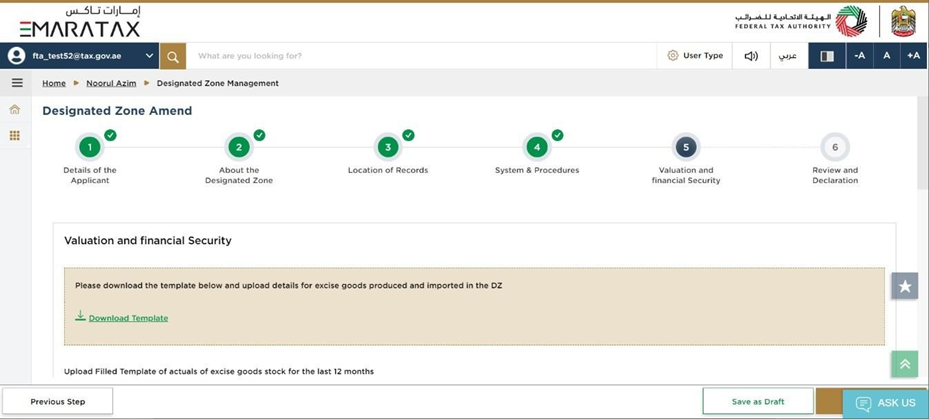
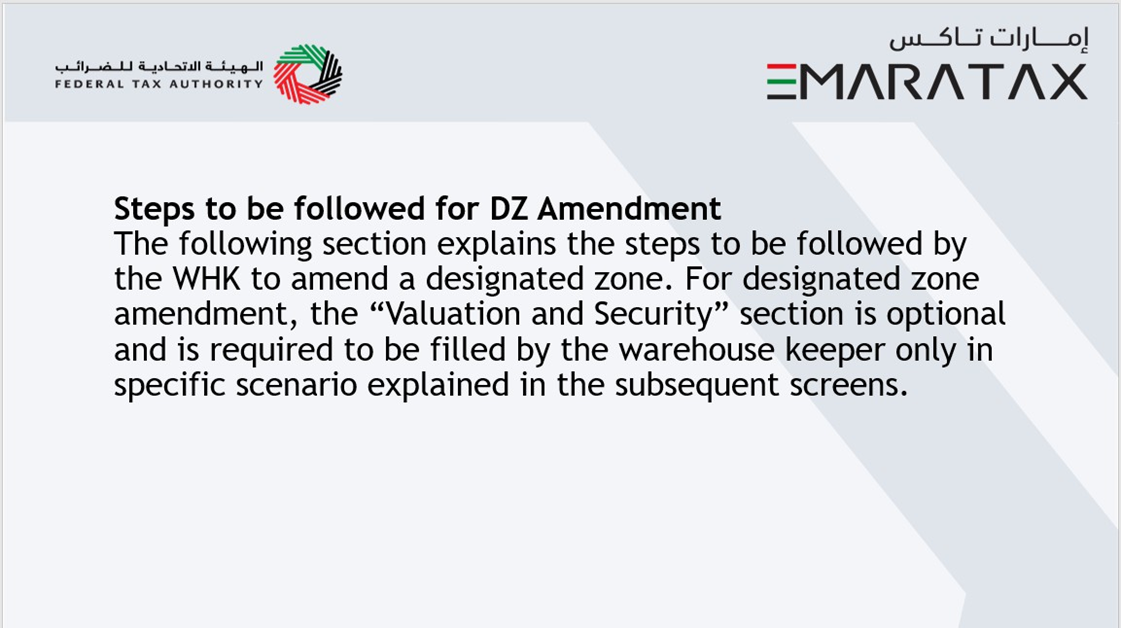
- For DZ amendment, you may amend this section if required. However, if you expect your estimated stock count to increase/decrease by more than 10% of the actual stock count for the previous 12 months, then you will be required to upload the estimates of the Excise goods stock details of Excise goods that will be held in the Designated Zone for the next 12 months. You will also be required to provide supporting documents such as those providing information about the valuation of Warehouse Keeper's Assets, the Number of persons employed by the Warehouse Keeper and documents to determine the Number of years and months the Warehouse Keeper has been in business. |

|
Step |
Action |
|
(1) |
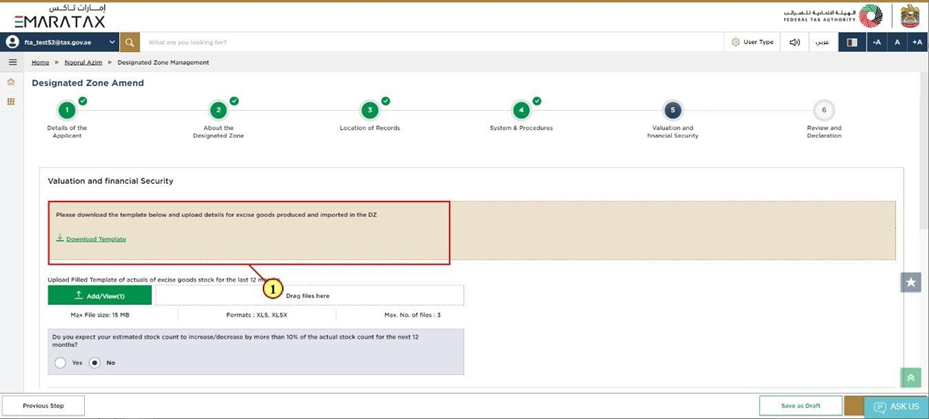
- Click ‘Yes’ if you expect your estimated stock count to increase/decrease by more than 10% of the actual stock count for the next 12 months. |
|
Step |
Action |
|
(1) |
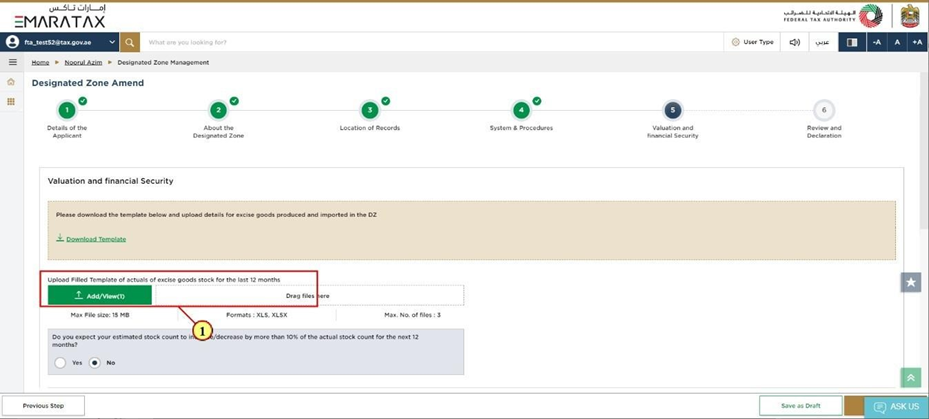
- Click ‘Download Template’ to download the excel template to enter the actual stock details of Excise goods that was held in the Designated Zone during the last 12 months. |
|
Step |
Action |
|
(1) |
- Click ‘Add’ to upload the filled excel template in the application. |
|
Step |
Action |
|
(1) |
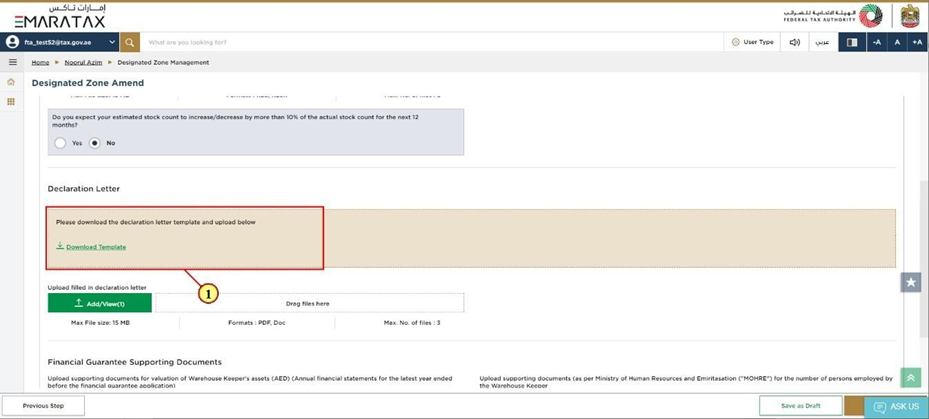
- Click ‘Download Template’ to download the declaration letter – tax evasion template. |
|
Step |
Action |
|
(1) |
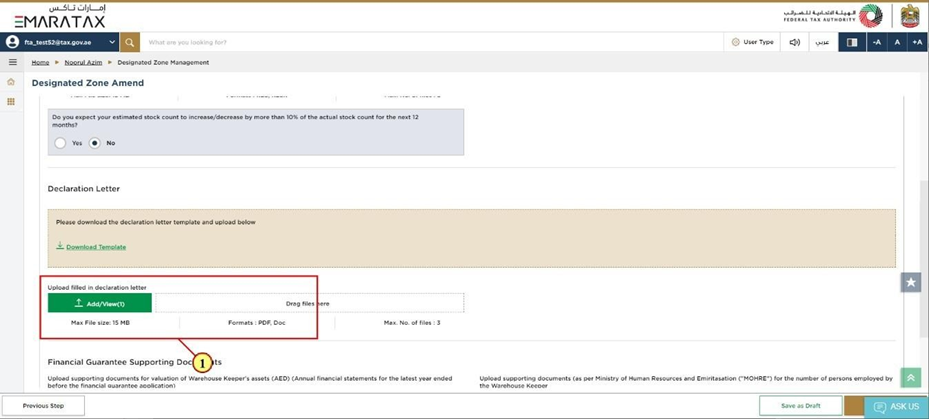
- Click ‘Add’ to upload the filled in declaration letter – tax evasion in the application. |
|
Step |
Action |
|
(1) |
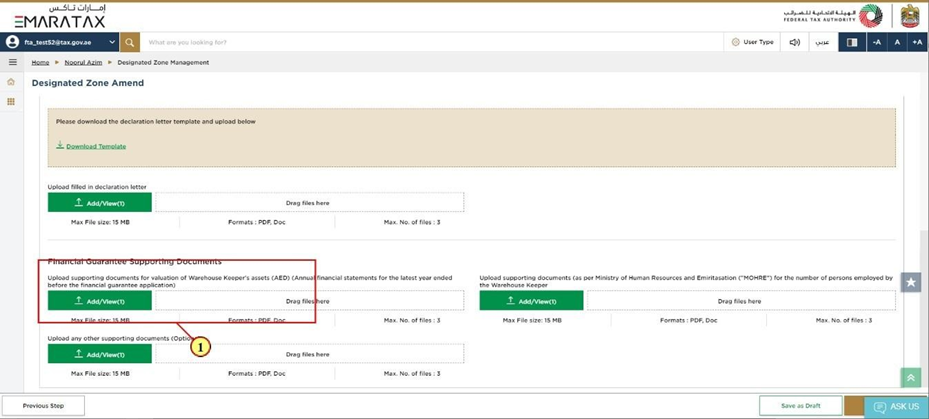
- Click ‘Add’ to upload annual financial statements for the latest year which is required for valuation of Warehouse Keeper’s assets (AED) |
|
Step |
Action |
|
(1) |
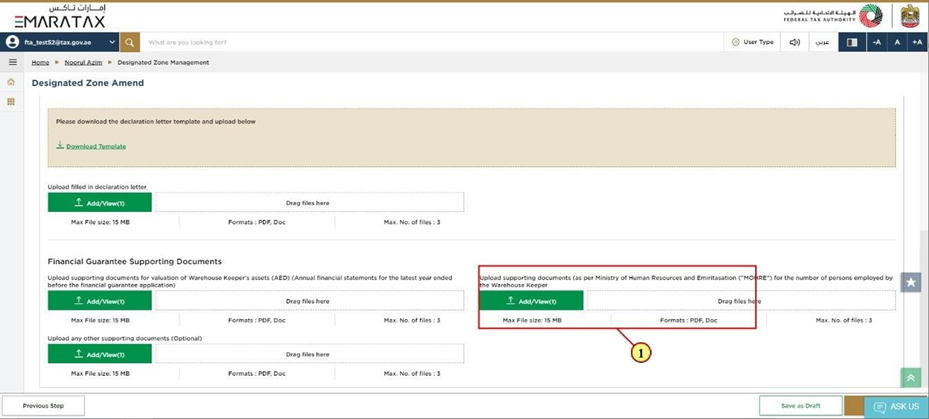
- Click ‘Add’ to upload supporting documents (as per Ministry of Human Resources and Emiritasation ("MOHRE") for the number of persons employed by the Warehouse Keeper. |
|
Step |
Action |
|
(1) |
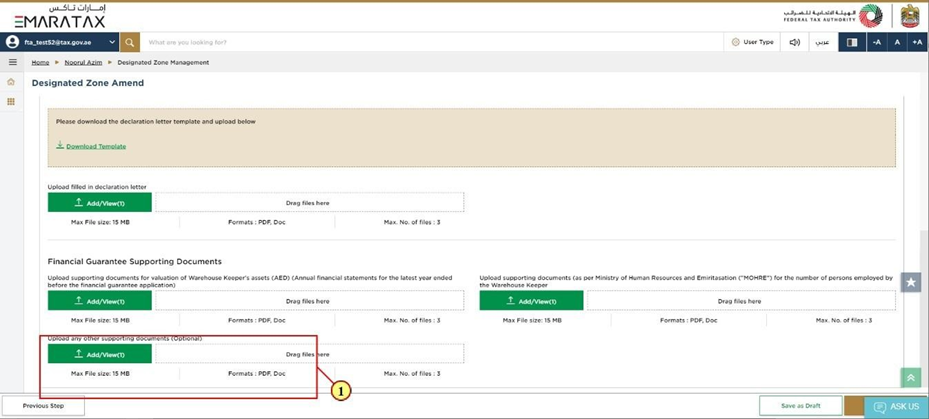
- Click ‘Add’ to upload any other supporting documents |
|
Step |
Action |
|
(1) |
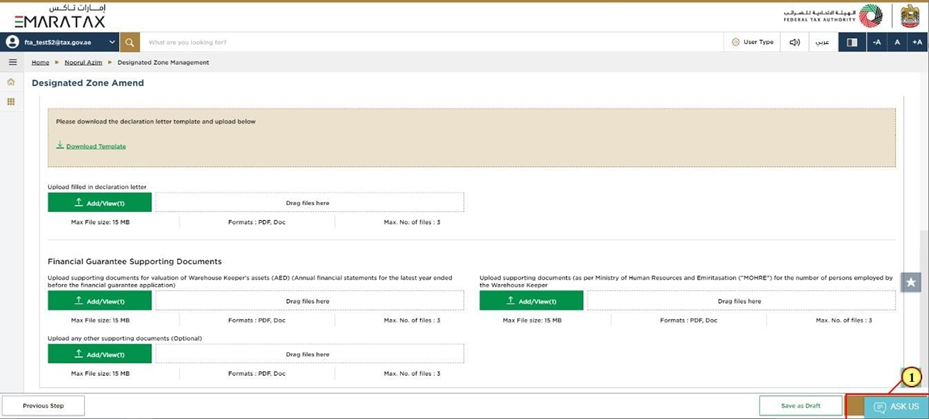
- After completing all the mandatory fields, Click ‘Next Step’ to save and proceed to the next section. |

Review and Declaration
|
|
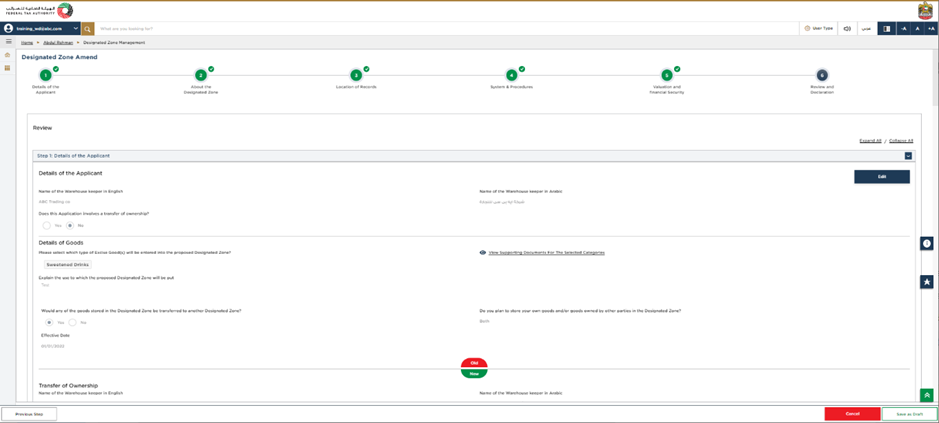
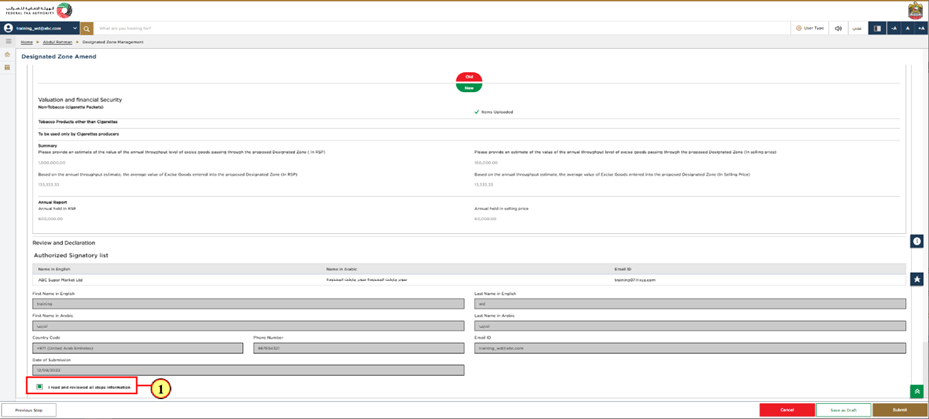
- The Review and Declaration section will help you to make sure that you have completed the registration application correctly and included the documents we have asked you to send. |
|
Step |
Action |
|
(1) |
After carefully reviewing all of the information entered on the application, mark the checkbox to declare the correctness of the information provided in the application. |
|
Step |
Action |
|
(1) |
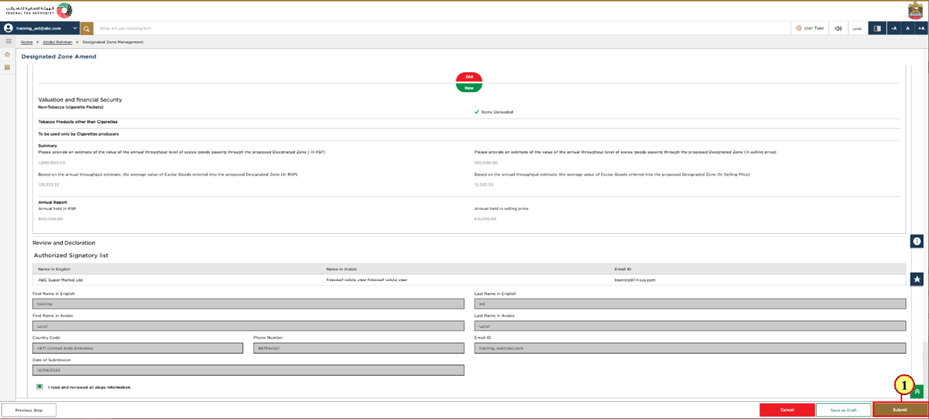
- Click ‘Submit’ to submit the Designated Zone registration application. |
Post Application Submission
|
|
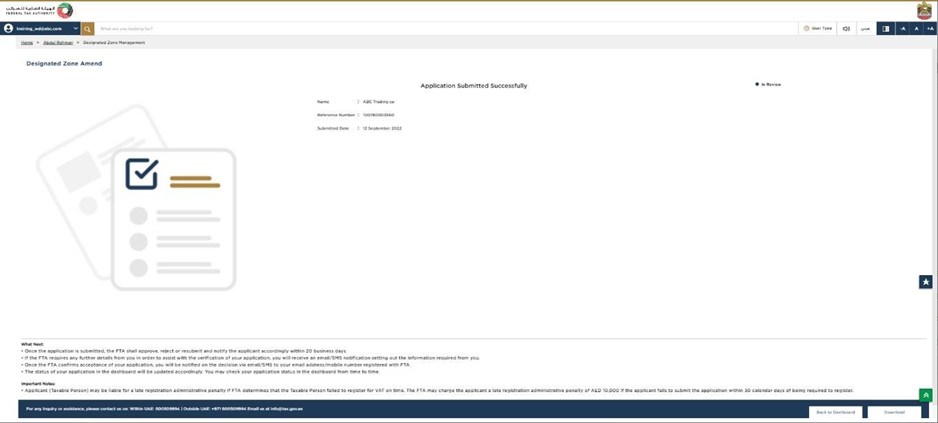
- After submitting the Designated Zone amendment application successfully, , a Reference Number is generated for your submitted application. Note this reference number for future purposes. |